[[{“value”:”
Hey AI Break fam 👋 Luis & Rui here!
Ever wished AI could take your product photos or model shots to the next level, without hours in Photoshop?
Good news: with Gemini’s Flash 2.5 image model (aka “Nano Banana”), you can.
Today’s tutorial shows you how to:
-
Recreate backgrounds with a reference image
-
Place products naturally into hands
-
Add or swap clothes on models & avatars
It’s fast, flexible, and seriously powerful for creators and marketers.
Let’s dive in.

1) Set up the model (2 minutes)
-
Open Google Gemini (latest version).
-
Switch to the Flash 2.5 model.
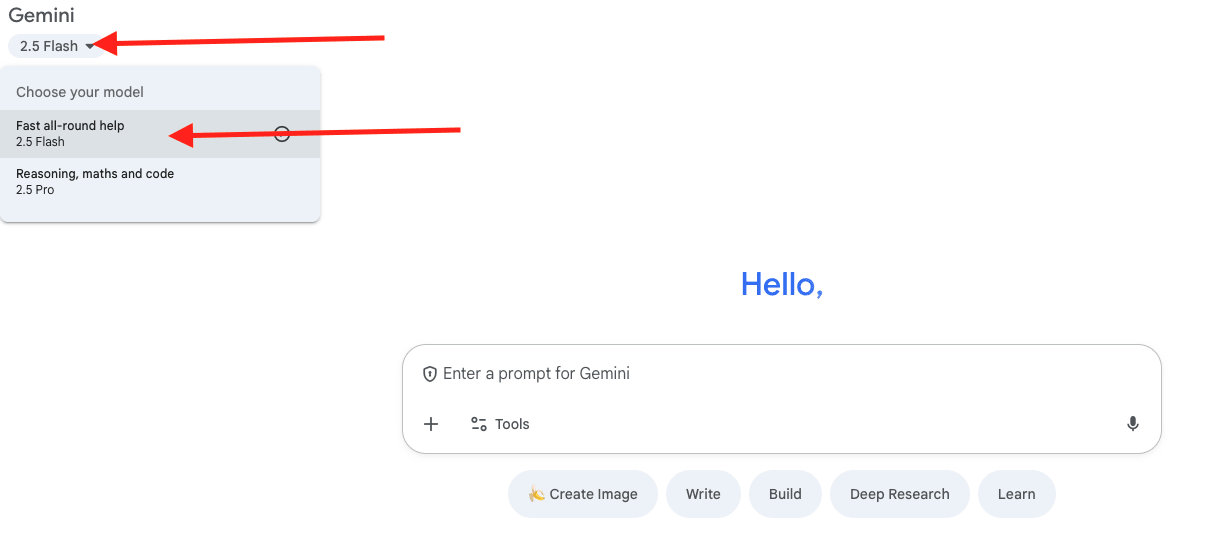
-
Go to tools and select “Create images”
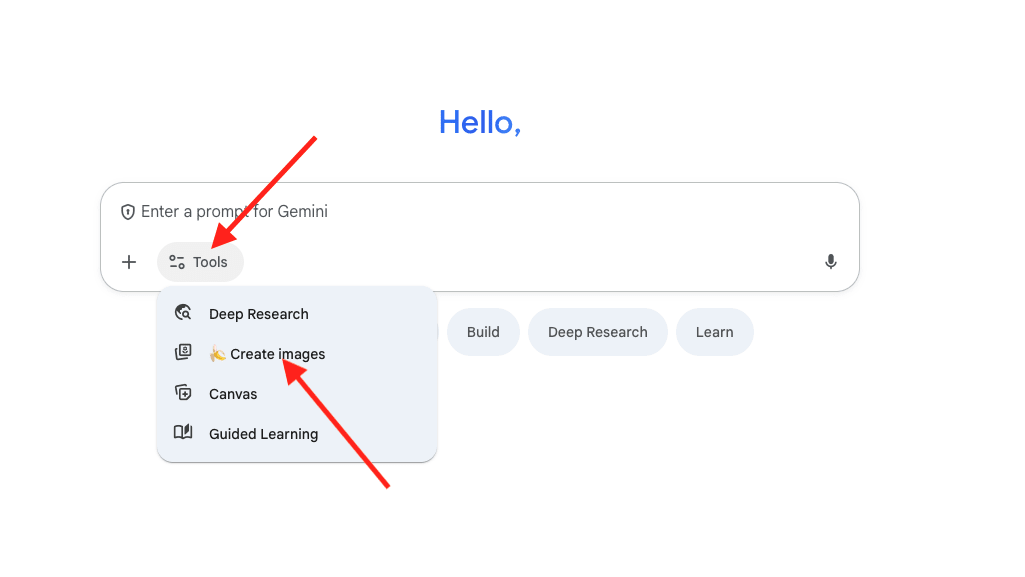
-
Free tier works for light tests (uploads + generations are limited). For heavier use, upgrade to Pro.
Tip: Keep a new chat per project. It makes iterative edits (“move the watch higher”, “keep size the same”) far more reliable.
2) Technique #1 — Background Control with a Reference Image
Use when: You want a specific mood/look (lighting, color, environment), and you’ll composite an object into it (e.g., a watch, shoe, bottle).
Steps
-
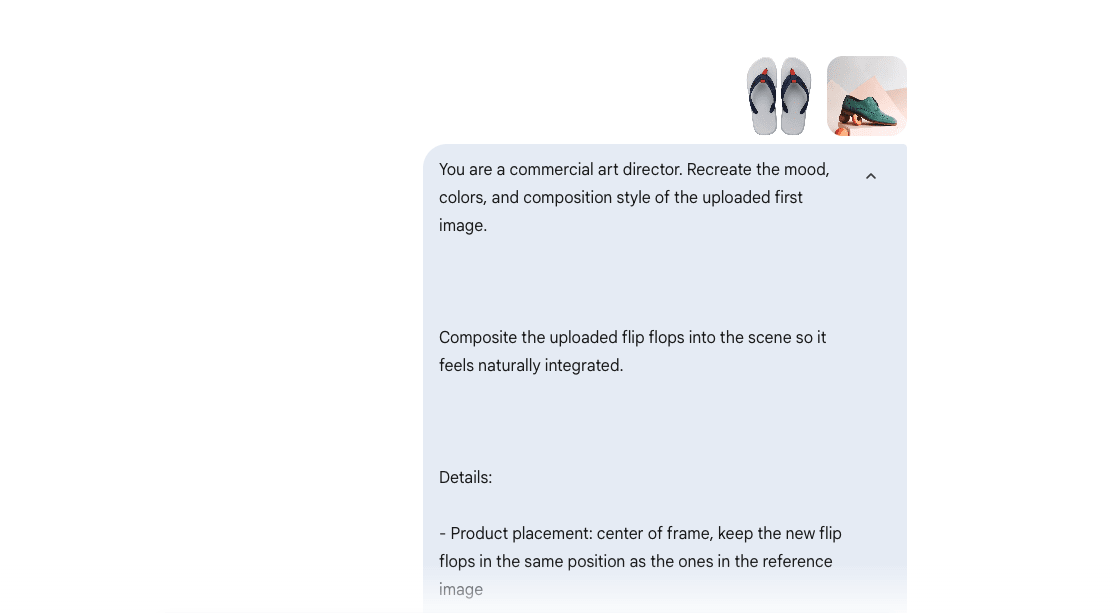
Upload a background reference image (the vibe you want).
-
Upload your subject photo (e.g., a watch on white).
-
Paste the prompt below, then generate.
Prompt (copy & adapt):
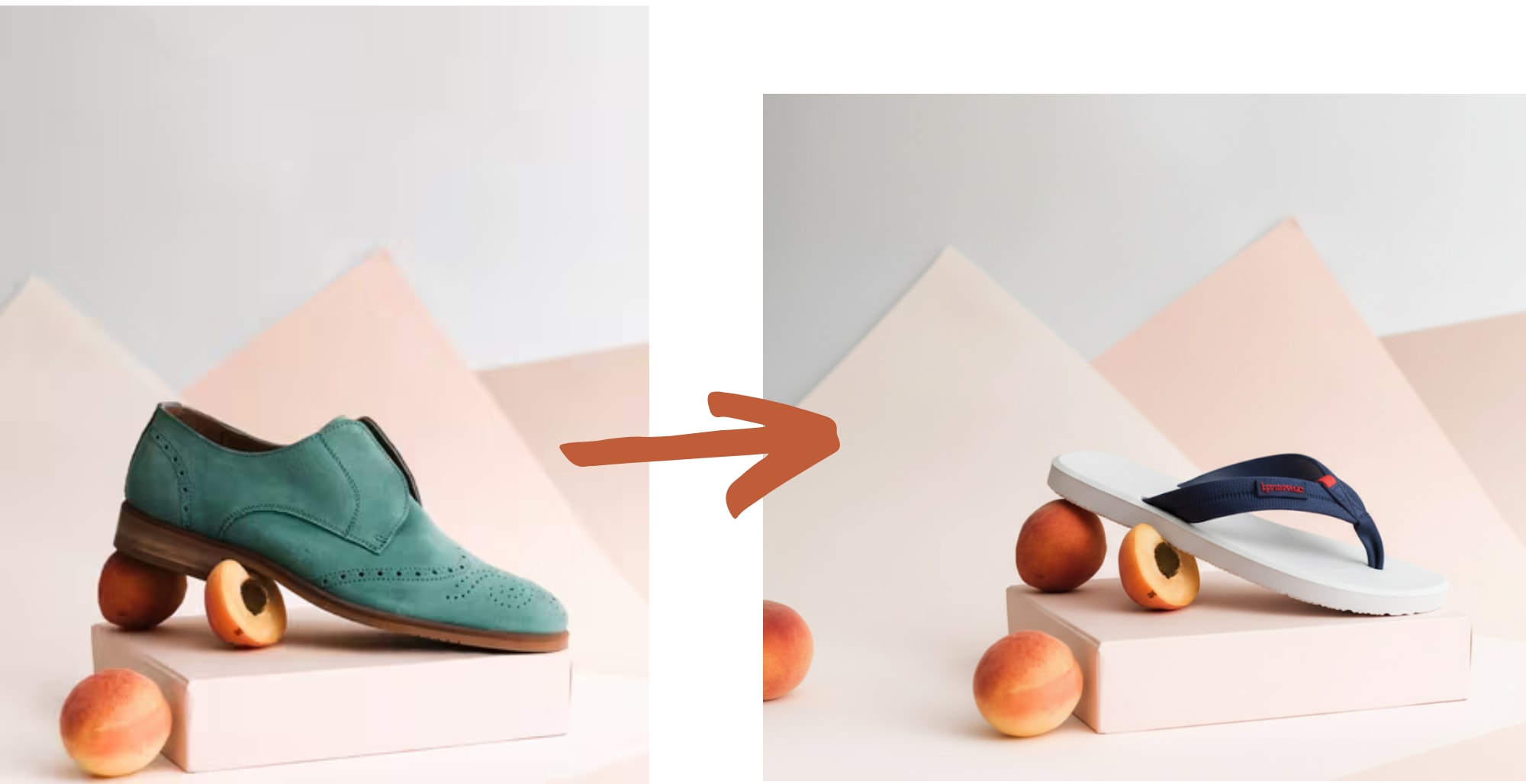
You are a commercial art director. Recreate the mood, colors, and composition style of the uploaded REFERENCE_IMAGE.

Composite the uploaded SUBJECT_IMAGE into the scene so it feels naturally integrated.

Details:
- Product placement: [describe where you want it → e.g., “center of frame, slightly floating above the surface”]
- Lighting: [describe your light → e.g., “soft sunset glow from the left, rim light from behind”]
- Atmosphere: [add vibe → e.g., “hazy, cinematic, warm tones”]

Constraints:
- Keep the SUBJECT the same size as uploaded
- Preserve reflections, materials, and sharp details

Deliver 3 variations with different shot angles.
Result:
Iterating like a pro
-
“Raise the product higher, keep size unchanged.”
-
“Reduce glow on the rim light by 20%.”
-
“Add slightly warmer key light from the left.”
-
“Increase depth haze behind subject for separation.”
Troubleshooting
-
If the model resizes the object when you ask to move it, add:
“Do not change product scale. Only adjust vertical position.” -
If dust/smoke overpowers the subject, specify:
“Dust opacity under 15%, detail focused on product.”
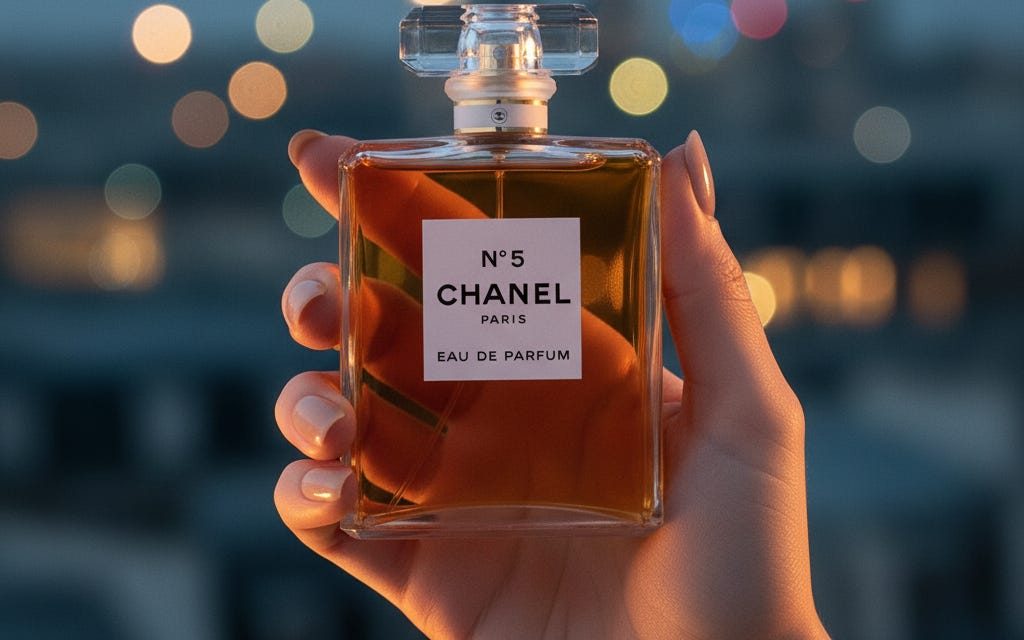
3) Technique #2 — Realistic “Hand + Product” Shots
Use when: You want believable hand poses, correct grip, and matching light, classic ad look.
Steps
-
Upload the product image (transparent PNG if available helps).
-
If you want a scene (e.g., rainforest), describe it clearly.
-
Use camera/lens cues to anchor realism.
Prompt (copy & adapt):
“}]] Read More in The AI Break