View more guides like this one.
Good Morning
It’s Chinese New Year period in these parts so my cadence may be lower than usual in mid to late February due to family commitments. When you think about Generative AI, it’s becoming more accessible to more AI enthusiasts of all ages. Early pilots of tools are becoming more streamlined with better user interfaces. I think Gemini and NotebookLM are great examples of this.
It’s one thing to write about the latest AI News but at a certain point I also want to inspire folk to use AI more, especially those who might be on the fence and who may have more discretionary time. is one of my go-to writers who inspires with easy to understand examples of how to use AI for a wide range of readers.
AI Blew my Mind 🤯
Turn your decades of experience into useful Al systems.
I asked Daria to help come up with a field guide of how to use tools like NotebookLM and Gemini for older adults (with videos 🎬).
Google’s suite of AI tools now have become a leader but it might not always be intuitive about how to use them together and in tandem. While I’ve read many guides to NotebookLM, I haven’t seen many for those unfamiliar with AI and who are over 60+ and or really on the introductory side for beginners. As much of the world have aging populations, these Golden Agers🌟 are becoming more important to our economy and to the great wealth transfer to the next generations and in how they share their experiences to uplift the future.
-
Every Google AI Tool in 2026: What Each One Does and When to Use It
Many retired professionals read this Newsletter and I want to recognize and thank them and say that this piece is for you. If you appreciate our efforts here, why not give us some support:
Daria is an expert at providing real-world use cases, and fun & accessible ways to think about how to use tools that you may have heard about in passing but haven’t really applied necessarily to your life and workflows.
How to Use NotebookLM with Gemini
With video explainers.
Read more of :
-
How I Went From Chasing AI Tools to Building AI Systems
-
How to Reduce AI Hallucinations: 7 Research-Backed Techniques
Google connected Gemini to NotebookLM. Here are 30 use cases across work, learning, personal projects, and creative work — with video walkthroughs and a downloadable guide.
Learn more about Daria.
If you’ve spent time exploring AI tools over the past two years, you’ve probably come across NotebookLM.
And if you haven’t, here’s the short version: it’s a free tool from Google where you upload your own documents, recordings, websites, Google Drive files. From there, you can chat with them or turn them into new formats.
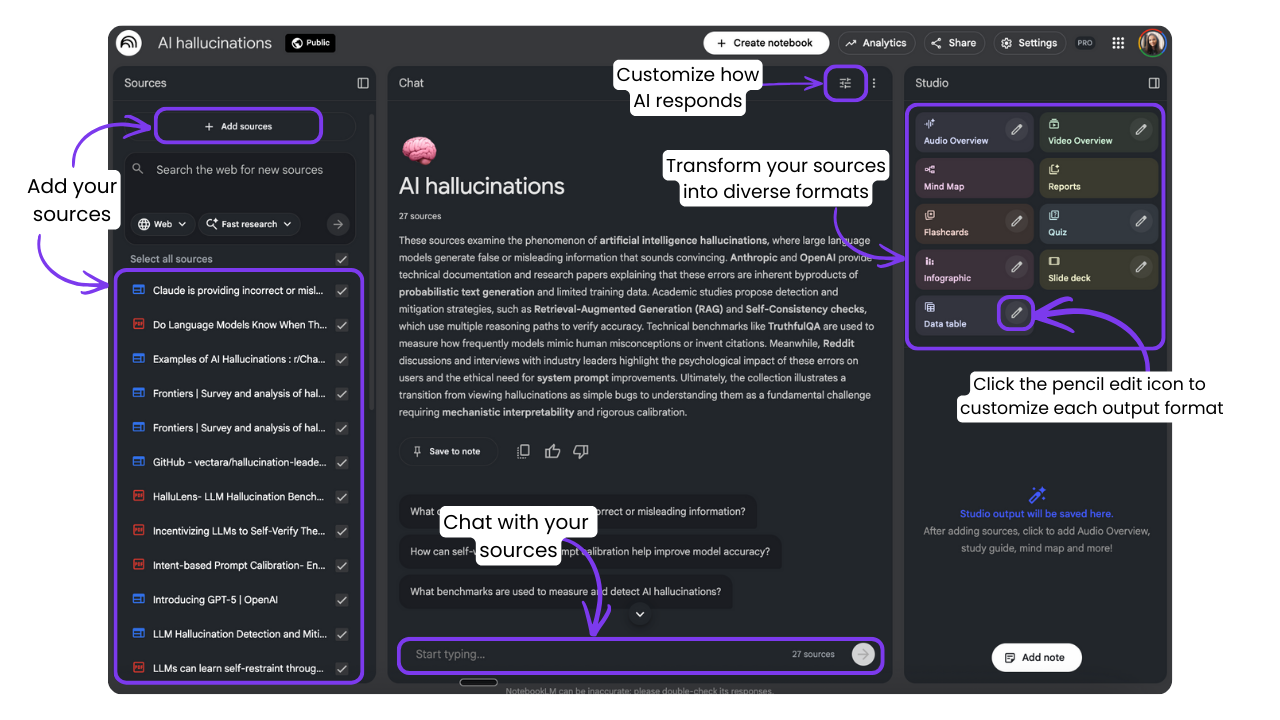
It’s basically a research assistant that only reads what you give it. That’s the whole reason people love it.
While general-purpose AI models pull answers from anywhere and can confidently tell you something that sounds right but isn’t, NotebookLM sticks to your sources. The hallucination rate is significantly lower.
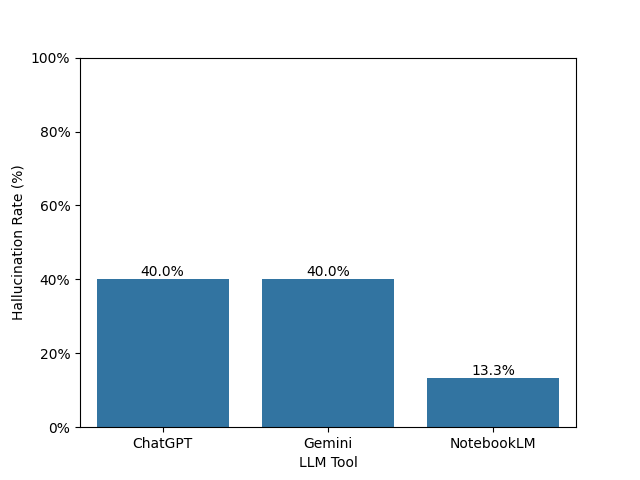
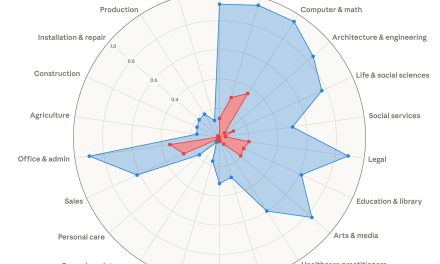
Overall rate of hallucination per tool. Access source.
Lower hallucinations, plus the way it lets you cluster and organize your resources for anything from research to data analysis to building knowledge bases, made NotebookLM one of Google‘s most successful AI experiments. And its popularity keeps growing.
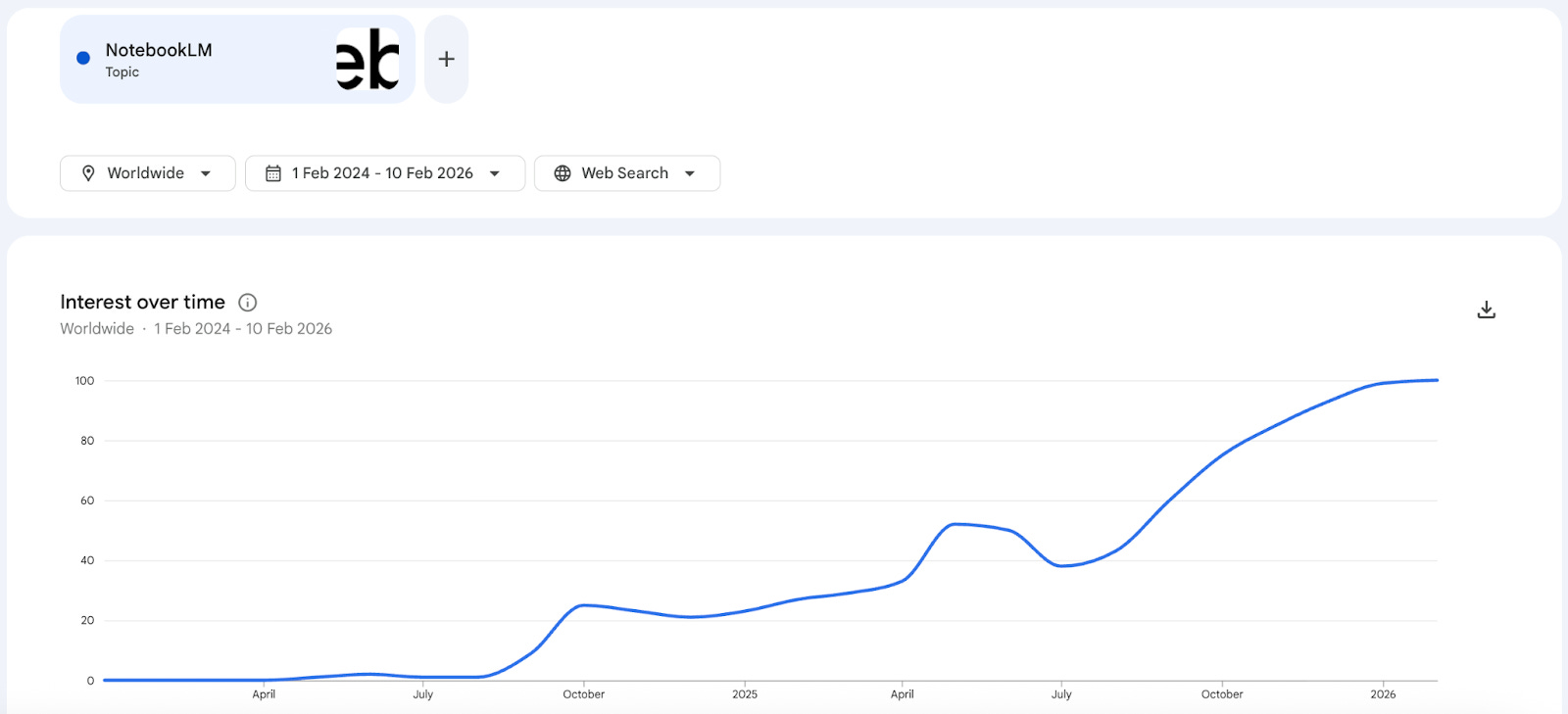
I get why. It’s one of the tools I now use almost daily to make sense of things, to store things about my projects, to help me with my writing, to create shared knowledge bases for readers or for clients. At this point, it’s just become part of how I work.
And it just got a major upgrade: Google connected Gemini to NotebookLM.
This integration means you can now go beyond your uploaded sources and bring in Gemini’s broader knowledge when you need it, while still keeping your source-grounded workspace as the foundation.
That opens up a lot of new possibilities. So today, I’m sharing 30 use cases across work, learning, health, writing, and personal projects.
Here’s what we’ll cover:
The backstory
-
What NotebookLM couldn’t do before the Gemini integration
-
How NotebookLM and Gemini work together
-
How to connect NotebookLM to Gemini (step by step)
6 use cases, walked through with video
-
Build a research assistant that already knows your world
-
Turn trusted research into guided learning and interactive formats
-
Repurpose your content archive into new formats
-
Turn technical documentation into something you can use
-
Get any expert as your personal consultant
-
Create branded presentations from your research
24 more ideas to get you started (downloadable guide)
What NotebookLM couldn’t do before the Gemini integration
-
No cross-notebook connections. Each notebook lives in isolation. If you need to connect ideas between two projects, you have to create a brand new “mega” notebook and manually copy the relevant pieces from both. You can’t even duplicate a notebook.
-
No access beyond your sources. Sometimes you want both: the accuracy of your own materials and the general knowledge of the internet. But if you need outside context, you have to leave the tool and search elsewhere.
-
Limited creative flexibility. NotebookLM is brilliant at answering questions and summarizing. But when you want to build something new from those sources, it gets clunky. I found a few hacks to make it write more like me, but iterating on the output isn’t the same as working with an LLM. Your options were taking it to another tool to finish or reprompting from scratch, and that’s not ideal.
-
No organizational system. No folders, no tags, no way to group notebooks. As you accumulate projects over time, finding the right one becomes its own project.
How NotebookLM and Gemini work together
NotebookLM is your library. It holds your “ground truth”. Your research, your documentation, your meeting recordings, your style guides, your course materials. It doesn’t hallucinate because it’s locked to those files.
Gemini is your assistant. It can write, draft, create images or videos, build interactive content with Canvas, and work across Google tools like Docs and Gmail.
The upgrade? You can now give the Assistant direct access to the Library.
That means Gemini can read everything in your NotebookLM projects and give you far more flexibility in what you do with that knowledge. Create, combine, research further, produce outputs that NotebookLM alone couldn’t.
This integration first rolled out to individual Google users in December 2025, and Google recently extended it to Workspace (business) accounts too.
How to connect NotebookLM to Gemini (step by step)
There are two ways to do this.
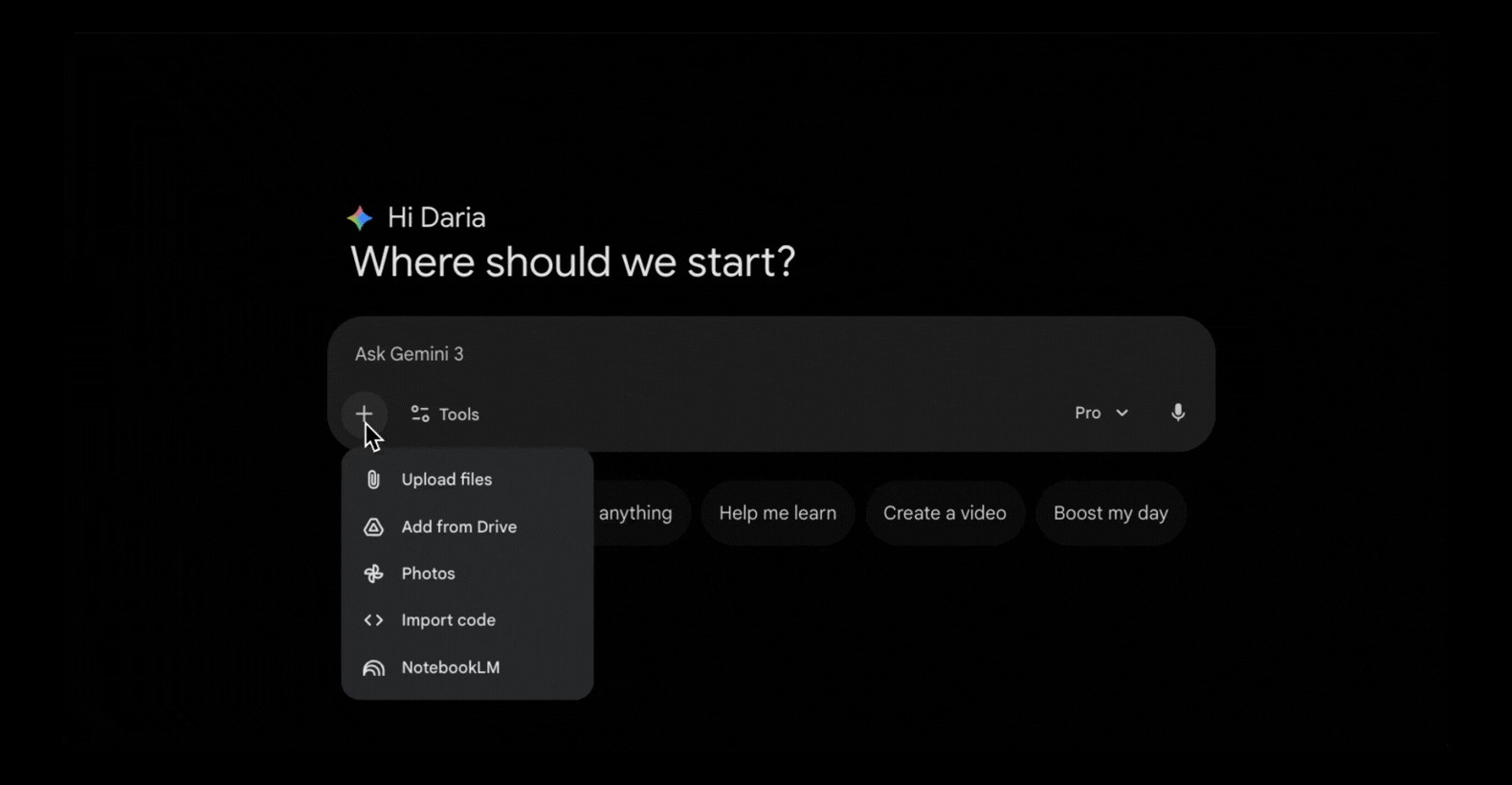
Option 1: Add a notebook to a regular Gemini chat
-
Open Gemini (gemini.google.com or the app)
-
Start a new conversation
-
Click the + icon where you’d normally attach a file. You’ll see a new option: NotebookLM
-
Select one or multiple notebooks
That’s it. Gemini now has access to everything in those notebooks for this conversation.
Option 2: Create a Gem (a reusable, customized assistant)
The first option is great for quick questions. This one is for the stuff you work on regularly.
Think of it as your own custom version of Gemini. You write the instructions, connect your notebooks, and every time you open it, it already knows what to do and what to reference.
And when you update a notebook with new sources, the Gem automatically has access to the latest version.
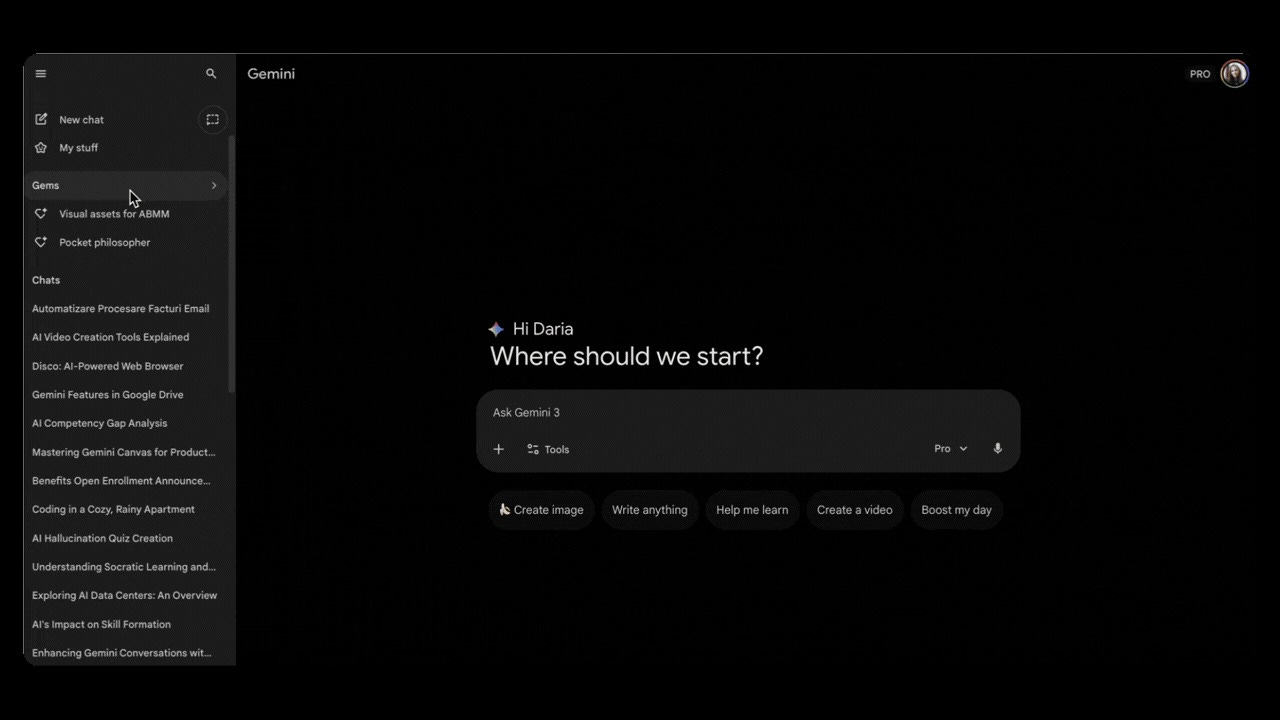
How to create a Gem:
-
Go to Gemini
-
Click “Gems” in the sidebar to open the Gem Manager
-
Click “New Gem”
-
Give it a name
-
Write instructions explaining what it should do and how it should use the attached knowledge
-
Choose a default tool if you want (Deep Research for thorough web searches, Canvas for building interactive content, Guided Learning for study paths, and others)
-
Under Knowledge, click to add sources. This is where you select your NotebookLM notebooks.
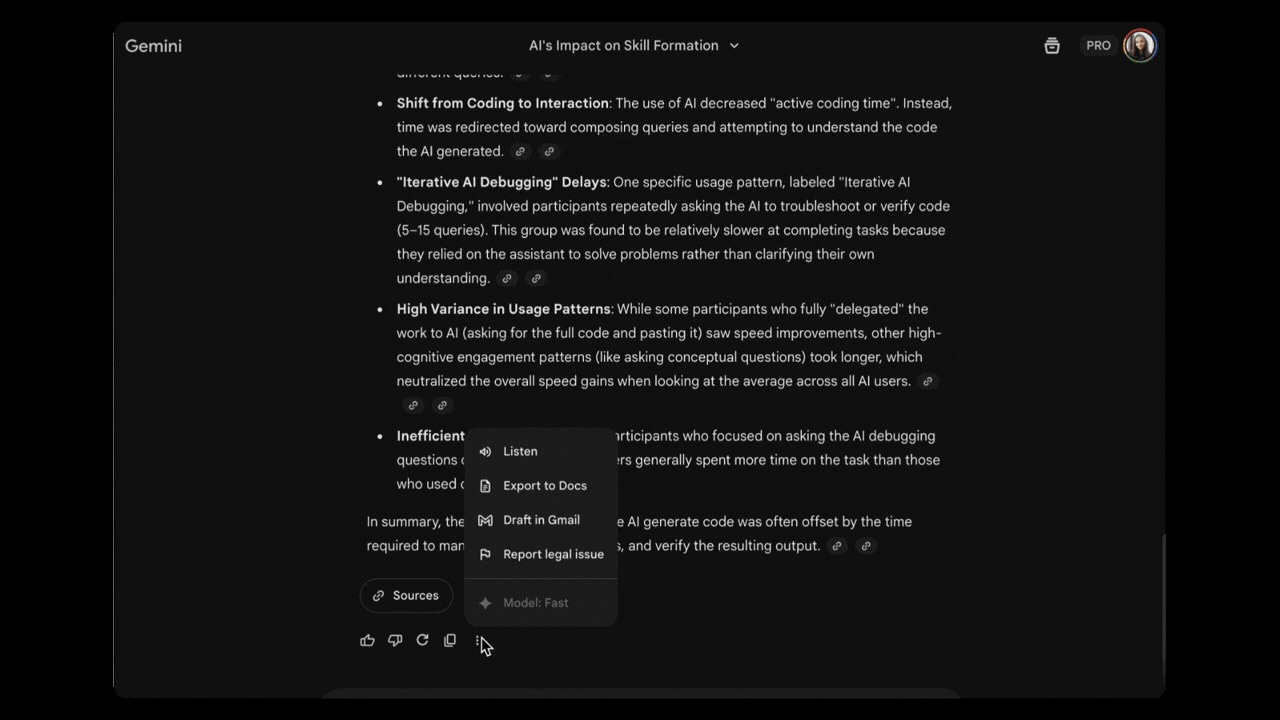
One more thing that works across both: whatever Gemini produces, you can export it directly to a Google Doc, send it as an email, or even listen to it read aloud. If you’re already in the Google ecosystem, everything connects.
Let’s put this to work. Here’s how I’ve been using NotebookLM + Gemini in practice.
6 NotebookLM + Gemini use cases, walked through
I tested six different ways to use the NotebookLM and Gemini combo: from weekly research that already knows my business, to cloning an expert as my personal consultant, to turning documentation I’d never read into useful tools. Each one has a video walkthrough and a written breakdown.
Use case 1: A research assistant that knows your world
Context: I run a newsletter and a consulting practice, so I need to stay on top of AI developments that are relevant to my audience and clients.
What I did: Created a notebook with everything about my business (audience personas, client profiles, positioning, what I write about) → created a new Gem → wrote a prompt telling it to research AI developments from the past seven days and surface what’s relevant to me based on my notebook → attached the notebook → set Deep Research as the default tool.
When this is useful for you: Anytime staying current matters. Industry trends, competitor moves, regulatory changes. Create a notebook with your context, attach it to a Gem, and let it do the scouting.
🎥 [Video “A research assistant that knows your world”]
Use case 2: Turn your trusted research into guided learning and interactive formats
Context: I watch a lot of health and wellness content, mostly Huberman Lab episodes on sleep, supplements, and healthy routines. But just watching doesn’t stick or change my routine, and if I want to learn from it or turn it into a routine I follow, I need more than what NotebookLM alone can do.
What I did: I had a notebook with a bunch of Huberman videos already in it → attached the notebook to a Gemini conversation → used Guided Learning, which turns Gemini into a Socratic-style tutor that asks you questions as you go → then used Canvas to prototype an interactive game that helps me understand how sleep works.
When this is useful for you: Anytime you want to go beyond what NotebookLM can do with your research, or you want Gemini to work from sources you trust instead of its general knowledge. Once you bring that notebook into Gemini, you get much more flexibility to turn it into something actionable and personalized: guided learning, interactive prototypes, routines, infographics, whatever you need.
🎥 [Video “Turn your trusted research into guided learning and interactive formats”]
Use case 3: Repurpose your own content into new formats
Context: I have over 60 articles stored in Google Drive, and since NotebookLM connects to Drive, it’s easy to add them all to a notebook. I wanted to repurpose them into Substack notes, not to promote the articles, but to extract my core ideas and turn them into fresh content.
What I did: Attached the notebook to a Gemini conversation → prompted it to identify my core themes and unique perspectives across articles, and generate 10 Substack notes consistent with my writing → then asked it to put all the notes into a spreadsheet so I have them organized in one place → exported it directly to Google Sheets.
When this is useful for you: Anytime you have existing content and want to turn it into something new. YouTube videos, courses, podcast transcripts, even notes from your phone. Since Gemini isn’t locked to the original text the way NotebookLM is, the output feels like new content. And you can take it further by organizing everything into spreadsheets, exporting to Sheets, or turning the whole setup into a Gem you reuse.
🎥 [Video “Repurpose your own content into new formats”]
Use case 4: Turn technical documentation into something you can use
Context: Every major AI tool has detailed technical documentation on how to get better results from it. But it’s long, dense, and hard to read. I wanted a faster way to extract the best practices and turn them into something I can use.
What I did: Created a notebook with documentation on how to write good prompts for generating images → attached it to a Gemini conversation → asked it to analyze everything and build a master prompt that turns any short one-liner into a detailed, ready-to-use image generation prompt.
When this is useful for you: Anytime you have technical documentation you want to make practical. Build master prompts from AI tool docs, turn product documentation into easy-to-understand blog articles or video guides for your customers, or extract best practices from any dense material and turn them into something you can work with.
🎥 [Video “Turn technical documentation into something you can use”]
Use case 5: Get any expert as your personal consultant
Context: There are experts out there whose thinking you trust. You’ve read their books, watched their talks. But applying their frameworks to your own specific situation takes time.
What I did: Created a notebook with three Alex Hormozi books as PDFs → attached it to a Gemini conversation → asked it to analyze my subscriber offer using Hormozi’s frameworks, critique what’s missing, and suggest improvements to make it convert better.
When this is useful for you: Anytime you want expert-level feedback on your own work and have that person as a consultant. Marketing, sales, writing, strategy, whatever the field. You bring the expert’s thinking, Gemini applies it to your situation. (You could even combine notebooks from different experts and ask Gemini to apply all of their frameworks at once)
🎥 [Video “Get any expert as your personal consultant”]
Use case 6: Create branded presentations from your research with full control
Context: NotebookLM can create slide decks from your sources, but you get very limited flexibility to edit them or describe what you want.
What I did: Had a notebook on AI hallucinations and created a second one with IBM’s branding guidelines → attached both notebooks to a Gemini conversation → asked it to extract key insights from the AI hallucinations notebook and create a guide for a non-technical audience, then analyze the IBM branding notebook for visual style, colors, and layouts → for each slide, it generated the content plus a specific image prompt matching the IBM branded style → took those into Google Slides and used the “Help me visualize” feature to generate each slide.
When this is useful for you: Anytime you want to turn dense research into a presentation that matches your own branding. You could import your own past decks as a reference, combine them with your research notebook, and get slides with exactly the content and style you want, with way more control than NotebookLM gives you.
🎥 [Video: “Create branded presentations from your research with full control”]
Want more?
I put together a list of more use cases across work, learning, personal projects, and creative work.
Download the full list with all 30 use cases
Your turn
Most of us are great at saving things and terrible at using them. We bookmark articles, save videos, download PDFs, and never look at them again.
This combo gives all of that knowledge somewhere to go and something to do.
And every source you add to your notebooks makes Gemini smarter about your world.
Have you tried the NotebookLM + Gemini integration yet? What use case are you going to start with?
More Resources
Check out some of our other related articles below:
Our other NotebookLM and Intro Related Pieces
-
How to Use NotebookLM with Claude Code
-
How to get into AI for Non-Technical Late Bloomers: A Beginner’s Guide
-
The 5 Claude Skills Every Digital Product Creator Needs
-
NotebookLM Got New Updates: How I Built a Learning System That Matches How My Brain Works
AIBMM articles:
Go deeper:
-
36 Claude Skills Examples to Transform How You Work (From 23 Creators)
-
The Claude Skills That Finally Made AI Write Like Me (And How to Build Yours)
-
Claude Cowork: 10 Use Cases I Tested + 67 More by Profession
-
How I Built a Personal AI Assistant (Step-by-Step, No Coding Required)
Read More in AI Supremacy