[[{“value”:”
Hey AI Breakers 👋
Most people still use AI like a fancy chatbot. Ask a question, get an answer, copy-paste, repeat. That is maybe 10% of what it can actually do for you.
Today, we’ll show you how to use Claude Cowork to be 10x more productive and use AI on a completely different level.
You’ll walk away with the full setup done plus 5 ready-to-run workflows that hand off the work eating your week directly to Claude.
-
✅ A fully installed Claude Cowork setup with Gmail, Calendar, Drive, Slack, and Notion connectors
-
✅ An Inbox Commander that triages 50+ emails and drafts replies in 5 minutes
-
✅ A Calendar Co-Pilot that plans your week and preps you for every meeting
-
✅ A Deliverables Factory that builds real docs, decks, and spreadsheets from your files
-
✅ A Team Sync Digest that turns Slack chaos into one daily briefing
-
✅ A Weekly Command Report that rolls the whole system up into an exec summary
Let’s build it 👇

🧠 What Claude Cowork Actually Is
Cowork is Anthropic’s desktop agent. Instead of chatting back and forth, you hand Claude a task, walk away, and come back to finished work.
Think of it as Claude with hands. It reads your local files. It pulls from Gmail and Calendar. It writes real Excel spreadsheets and PowerPoints. It runs for hours without timing out.
-
💬 Chat mode: the classic back-and-forth you already know
-
🤖 Cowork mode: Claude runs autonomous tasks on your machine
-
🔌 Connectors: Gmail, Calendar, Drive, Slack, Notion, DocuSign, and more
-
📁 File access: reads and writes anything on your computer
Old way: 12 browser tabs, 4 apps, 2 hours a day lost to context-switching.
New way: one desktop app, one prompt, one finished deliverable.
⚙️ The 5-Minute Setup (Do This Once)
Before running any prompt below, you need Cowork installed and connected. It takes 5 minutes total.
Step 1. Confirm your Claude plan. Cowork requires a paid plan: Pro, Max, Team, or Enterprise. Free plans do not work. If you are on free, upgrade first at claude.com/pricing.
Step 2. Download Claude Desktop. Go to claude.com/download. Grab the Mac or Windows installer. Install like any normal app.
Step 3. Run the readiness check. On the same download page, grab the Cowork readiness checker for your OS. Run it. You want to see: “This computer is ready for Cowork.”
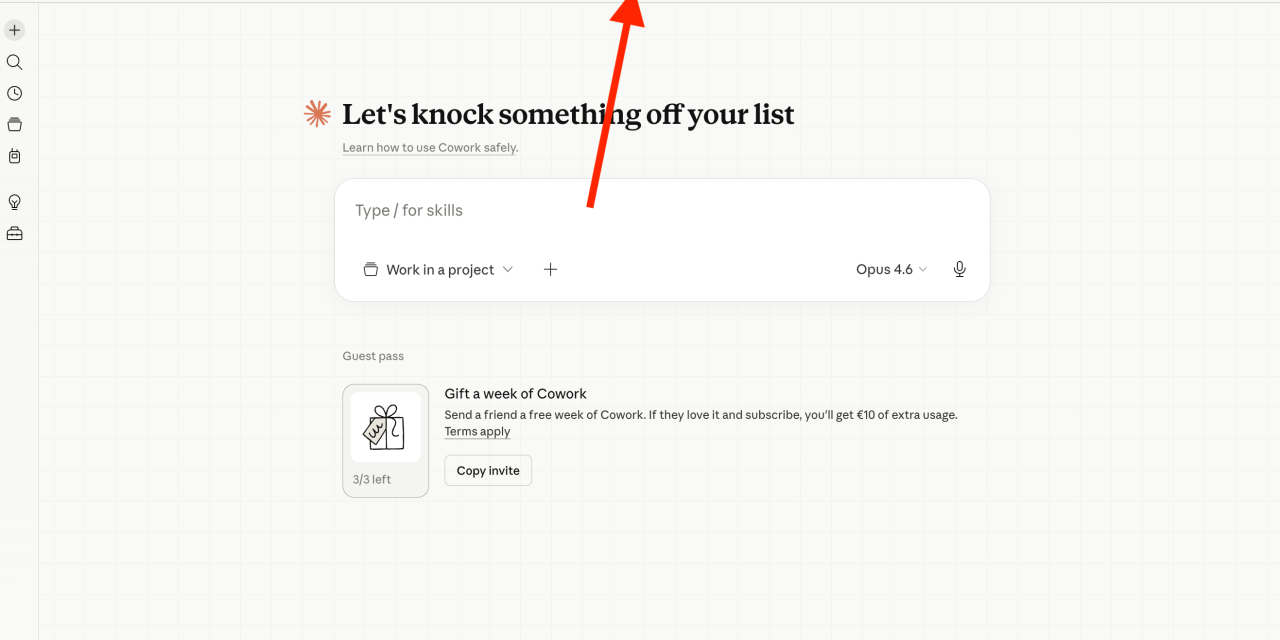
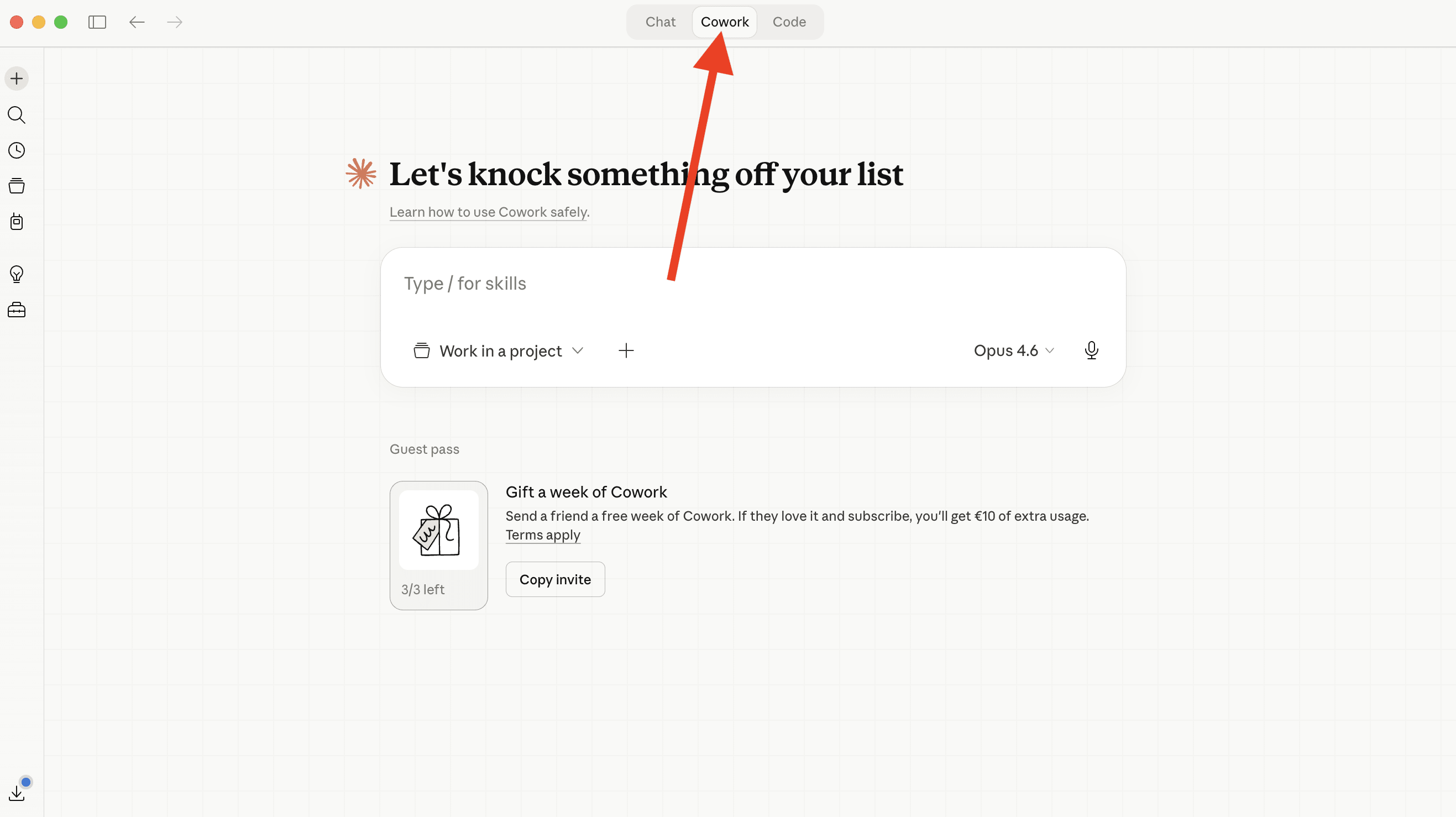
Step 4. Switch to Cowork mode. Open Claude Desktop. At the top of the app you’ll see two tabs: Chat and Cowork. Click Cowork.
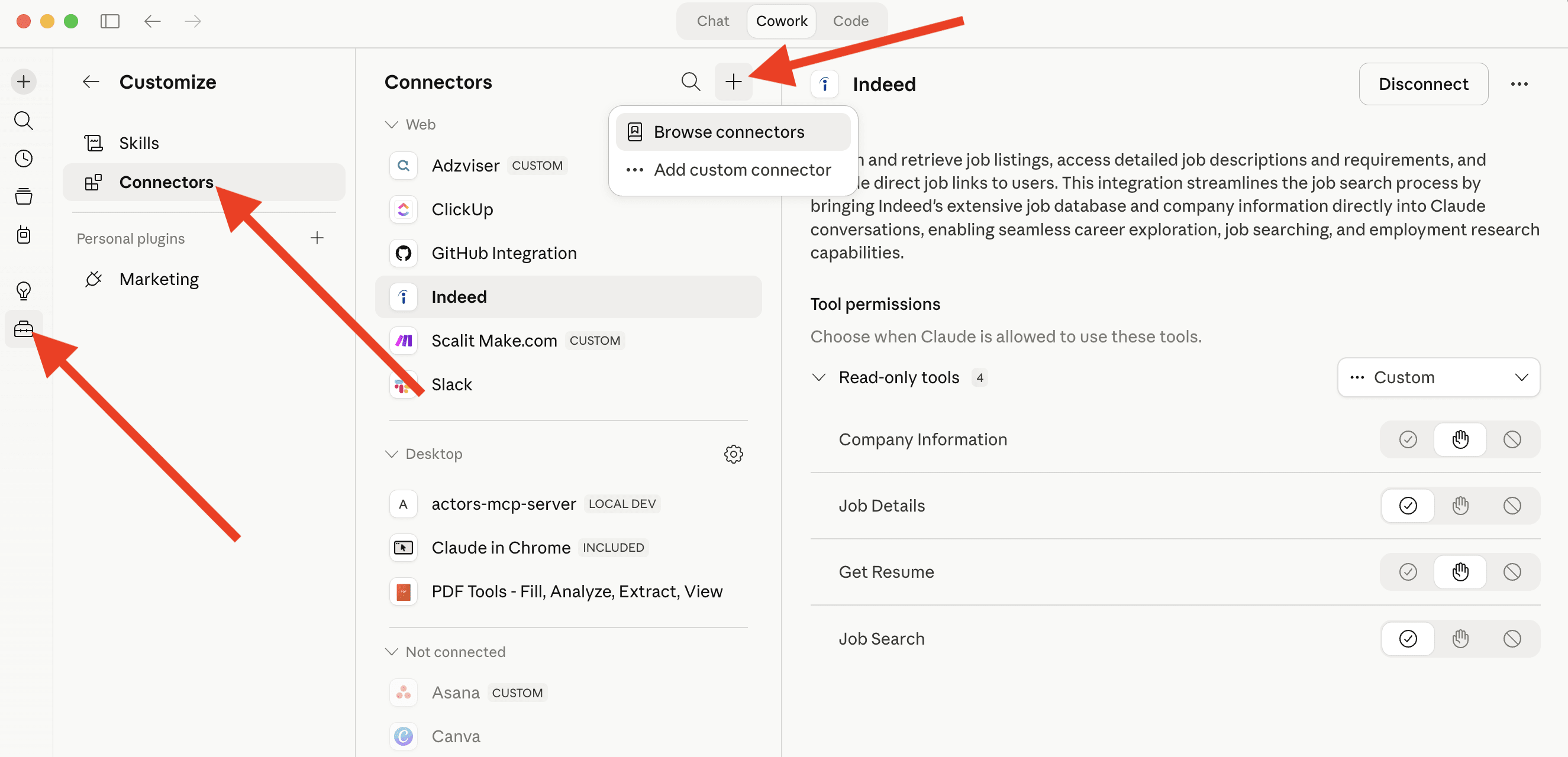
Step 5. Install your 5 connectors. In the Cowork sidebar click Customize → Browse plugins.
Search for and install:
-
📧 Gmail
-
📅 Google Calendar
-
📂 Google Drive
-
💬 Slack
-
📝 Notion
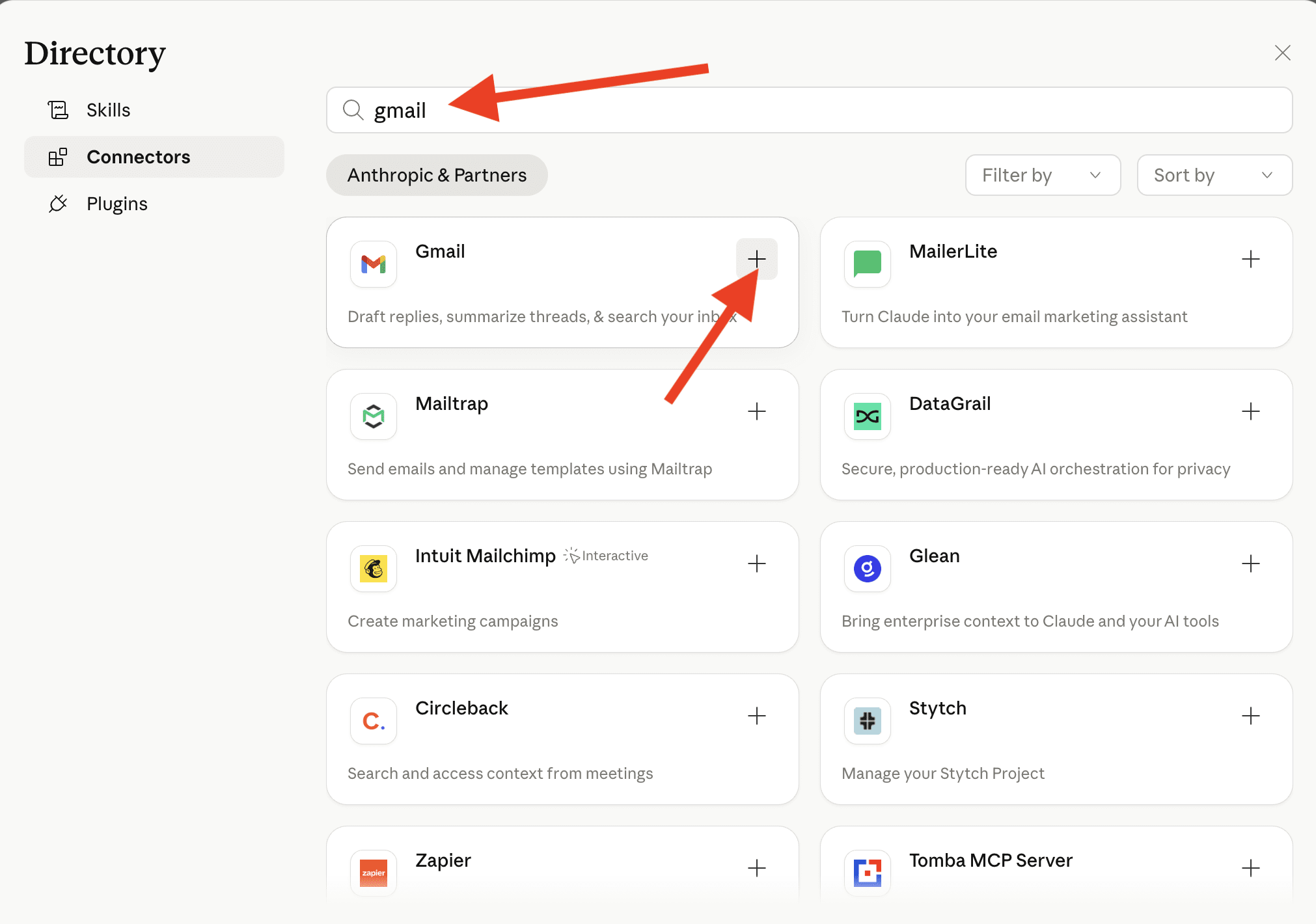
Each connector asks you to log in and approve permissions. 30 seconds per connector. Once installed, hit
/or click the+button in any Cowork chat to see every new skill available.That is the entire setup. Now let’s make it earn its keep.
📧 Prompt #1 → The Inbox Commander (Triage Your Inbox in 5 Minutes)
Your inbox is where your day goes to die. This prompt lets Cowork open Gmail, scan every unread email, and hand you a prioritized action list plus draft replies to the urgent ones.
The goal:
-
A ranked list of emails by urgency and importance
-
Draft replies saved directly in Gmail for anything needing a response
-
A list of emails safe to archive or ignore
✅ Use this first thing every morning or right after lunch.
Prompt:
You are my executive assistant working inside Claude Cowork. You have access to my Gmail through the connector.

Your task: run a complete inbox triage for me right now.

Step 1. Open Gmail and list every unread email from the last 24 hours (or the oldest 50 unread if I have a backlog).

Step 2. For each email, extract:
- Sender name and domain
- Subject line
- One-sentence summary of what they want
- Urgency score (1 to 5, where 5 = needs response today)
- Importance score (1 to 5, where 5 = direct business impact)

Step 3. Sort by (urgency + importance) descending. Output as a clean table.

Step 4. For any email with urgency of 4 or higher, draft a short professional reply in my voice. My voice is: [DESCRIBE YOUR TONE, e.g. "friendly, direct, short sentences, never formal"]. Save each draft inside Gmail so I only need to review and send.

Step 5. For emails with urgency + importance of 3 or lower, suggest which ones I can safely archive. Do not archive anything yourself. Only suggest.

Step 6. End with a 3-bullet summary:
- Top 3 priorities from my inbox today
- Total drafts you created
- Anything I should know about before I open Gmail myself

Do not send any email. Only draft. I review everything.
💡 Tip: The “describe your tone” line is where most people fail. Paste 2 or 3 real past emails you have sent as examples. Cowork will mirror your voice almost exactly instead of defaulting to corporate speak.
📅 Prompt #2 → The Calendar Co-Pilot (Plan Your Week in 10 Minutes)
Cowork reads your calendar, cross-references the inbox priorities from Prompt #1, and builds you a focused week. No more starting Monday with no clue where the time goes.
The goal:
-
A week-at-a-glance view of every meeting with prep notes
-
Protected deep work blocks aligned to your top priorities
-
Conflict flags for back-to-backs, double bookings, and overloaded days
✅ Use this every Sunday night or Monday morning.
Prompt:
You are my chief of staff working inside Claude Cowork. You have access to my Google Calendar and Gmail connectors.

Using the inbox priorities you surfaced in Prompt #1 as context, plan my upcoming week.

Step 1. Open Google Calendar and pull every event from tomorrow through next Friday. Include meeting title, attendees, duration, and any attached agenda or doc link.

Step 2. For each meeting:
- Classify it (client, internal, 1:1, external, admin)
- Flag any with no agenda or unclear purpose
- Pull the most recent 3 emails from each external attendee so I walk in with context
- Write a 3-bullet prep note: the goal, the key questions to ask, the outcome I want

Step 3. Find my deep work blocks. A deep work block is any uninterrupted 90-minute gap on the calendar. List every one of them.

Step 4. Match each deep work block to a top priority from my inbox triage. Propose exactly what I should do in each block.

Step 5. Flag red zones: back-to-back meetings with no buffer, double bookings, any day with more than 5 meetings.

Step 6. Output in this exact format:

## Week Overview
[week dates, total meetings, total deep work hours]

## Priority Meetings (with prep notes)
[list with prep bullets]

## Deep Work Blocks
[list with assigned priorities]

## Red Flags
[conflicts, no-agenda meetings, overloaded days]

Do not modify anything in my calendar. Just read and report.
🧠 Tip: After you see the output, fire a follow-up: “Draft a reschedule request for every meeting tagged ‘no agenda’ and send it to the organizer asking for an agenda first.” Cowork will write the notes and wait for your approval before sending anything.
📄 Prompt #3 → Turn Files Into Finished Work
This is where Cowork crushes every other AI tool. It opens local files, pulls from Google Drive, and produces real Excel sheets and PowerPoint decks. Not text suggestions. Actual files.
The goal:
-
A polished deliverable ready to share (spreadsheet, deck, report, or brief)
-
Built from your actual source material, not generic filler
-
Saved to a location you choose, formatted for the audience you name
✅ Use this any time a priority from Prompt #2 requires a real output.
Prompt:
“}]] Read More in The AI Break