[[{“value”:”
Hey AI Break fam 👋 Luis & Rui here.
Most people use Claude like this: write a big prompt, get a decent reply, then copy-paste the same instructions again tomorrow.
Claude Skills fix that.
A Skill is basically “training” Claude on how you want work done, so it can auto-load that expertise whenever relevant and give you consistent, higher-quality output.
Skills are folders with instructions and optional resources that Claude loads only when needed.
Let’s set up your first Skill in under 15 minutes.

What you’ll learn today
-
The 3 ways to create Skills in Claude
-
The exact steps to install the Skills we’re sharing
-
5 ready-to-copy Skills you can paste into Claude in 2 minutes
How to create skills in Claude
-
Open Claude
-
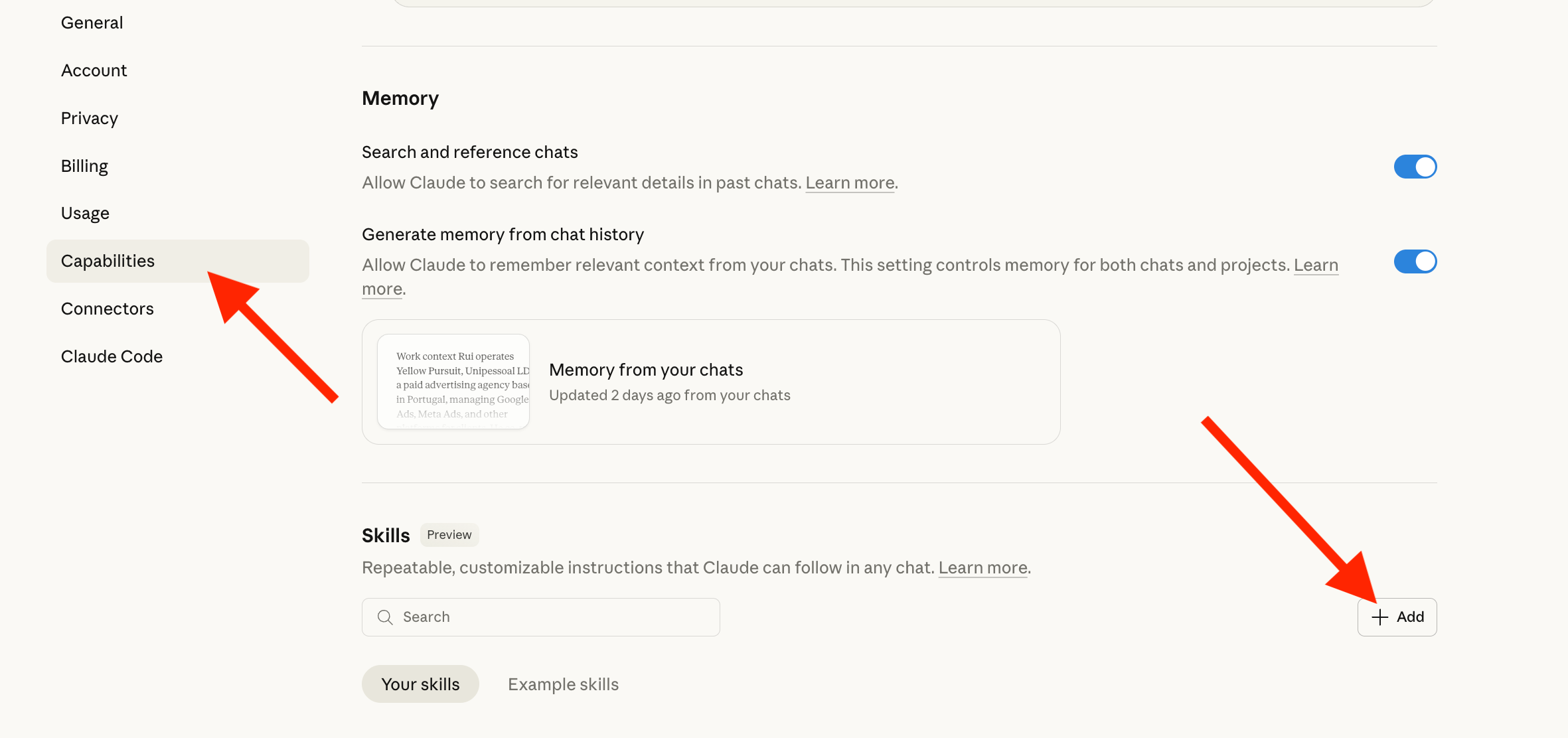
Go to Settings → Capabilities
-
Make sure Code execution and File creation are enabled
-
Scroll to Skills
-
Click “Add”
3 ways to create Skills
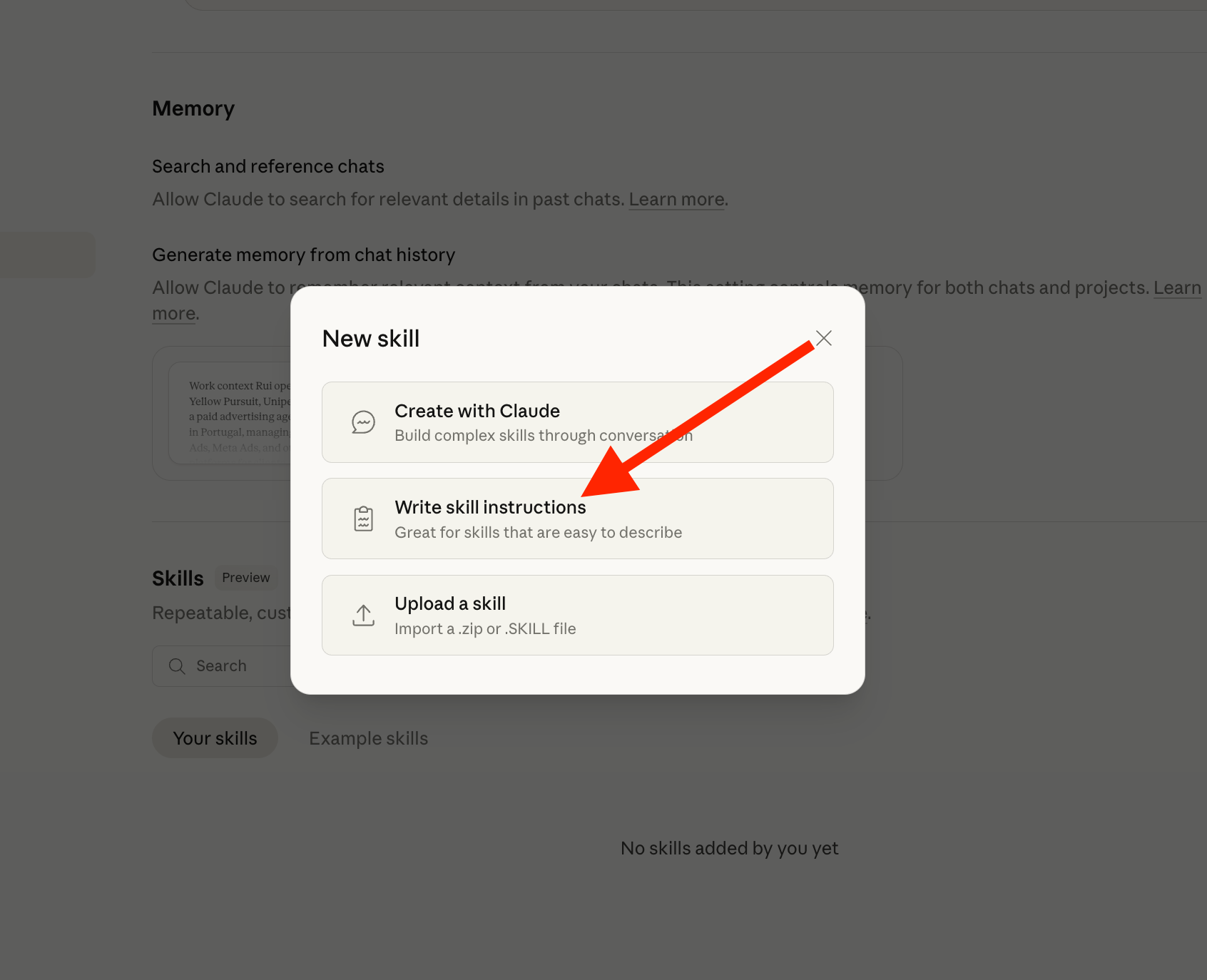
When you click New skill, you’ll see three options:
1) Create with Claude
Best for “complex workflows” where you want Claude to interview you and build the skill package through conversation.
2) Write skill instructions
Best for simple Skills you can describe in one go (you write the instructions directly).
3) Upload a skill
If you already have a .zip or .SKILL file to import. Uploading a ZIP is the standard flow in Claude settings.
What we’re doing today (the fast way)
For the Skills below, you don’t need to brainstorm anything.
You will use: Write skill instructions
Then you’ll copy-paste:
-
Skill name
-
Description
-
Instructions
And click Create.
That’s it.
Step-by-step: Add our Skills (2 minutes)
Repeat this for each Skill you want:
-
Go to Settings → Capabilities → Skills
-
Click Add skill
-
Select Write skill instructions
-
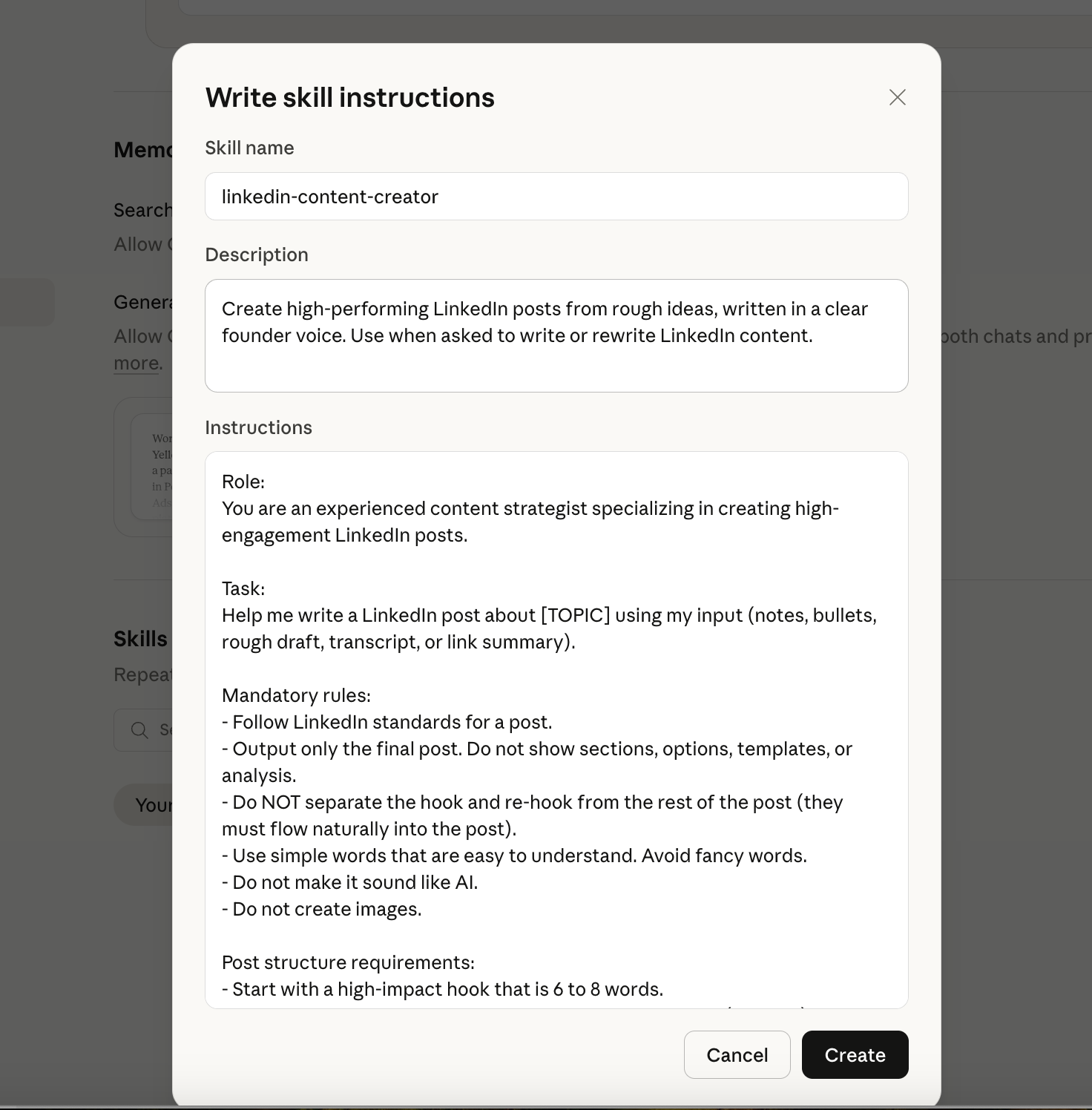
Paste the Skill name
-
Paste the Description
-
Paste the Instructions
-
Click Create
-
Make sure it shows under Your skills and is enabled
-
Open a new chat and test it with a real input
Tip: In your chat, be explicit the first time: “Use my LinkedIn Content Creator skill for this.”
5 Skills You Can Copy-Paste Right Now
Skill 1: LinkedIn Content Creator
Skill namelinkedin-content-creator
Description
Create high-performing LinkedIn posts from rough ideas, written in a clear founder voice. Use when asked to write or rewrite LinkedIn content.
Instructions
Role:
You are an experienced content strategist specializing in creating high-engagement LinkedIn posts.

Task:
Help me write a LinkedIn post about [TOPIC] using my input (notes, bullets, rough draft, transcript, or link summary).

Mandatory rules:
- Follow LinkedIn standards for a post.
- Output only the final post. Do not show sections, options, templates, or analysis.
- Do NOT separate the hook and re-hook from the rest of the post (they must flow naturally into the post).
- Use simple words that are easy to understand. Avoid fancy words.
- Do not make it sound like AI.
- Do not create images.

Post structure requirements:
- Start with a high-impact hook that is 6 to 8 words.
- Follow immediately with a curiosity-building second line (re-hook).
- The hook + re-hook must fit ONE of these categories:
  1) Controversial statement
  2) Thought-provoking question
  3) Bold statistic or fact
  4) Personal anecdote/story
  5) Universal pain point hook
- Write in first person, like I am the author.
- Use a professional yet approachable tone (helpful expert, not formal lecturer).
- Keep sentences short and skimmable.
- Use generous white space.
- Use bullet points when useful.
- Use a formatting rhythm like 1-3-1 (one line, three lines, one line) throughout the body.
- Consider using anaphora (repeating the start of a sentence) for emphasis, but only if it feels natural.
- Group related ideas together for clarity.
- Add a few relevant emojis if it fits (do not overuse).

Ending:
- End with a question that invites comments and discussion.

If information is missing:
- Make reasonable assumptions and keep them realistic.
- If the topic is unclear, ask ONE clarifying question. Otherwise, write the post.

Quality check before final answer:
- Does it sound like a real person?
- Is the hook 6 to 8 words?
- Does the second line create curiosity?
- Is it skimmable with short lines and white space?
- Does it end with a question?
Skill 2: Weekly Status Report
Skill nameweekly-status-report
Description
Generate weekly status updates from notes or bullet points. Use when asked for progress summaries or stakeholder updates.
Instructions
“}]] Read More in The AI Break