[[{“value”:”
Hey AI Break fam 👋 Luis & Rui here.
Most people try to “stay consistent” on LinkedIn by forcing themselves to write every day.
But the creators who grow fastest do something different:
They build a system that finds the best topic and writes the post for them.
Today you’ll build that exact system in Make.com.
What you’ll build
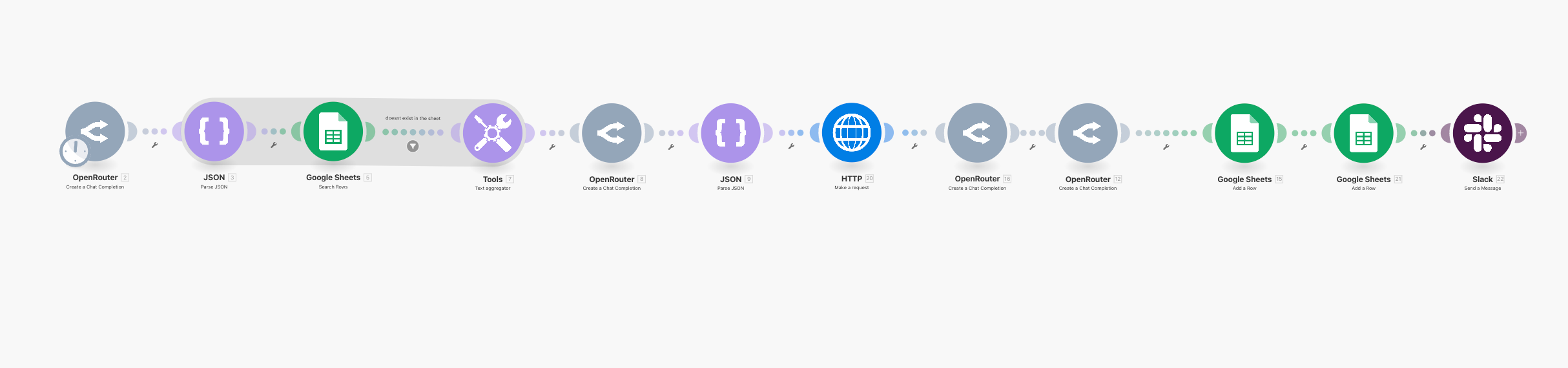
Every time this runs, it will:
-
Ask Perplexity: “What are the top 5 AI news stories from the last 7 days?”
-
Check a Google Sheet blocklist to avoid repeats
-
Ask ChatGPT: “Which of these is the most important + can go viral?”
-
Scrape the article HTML + retrieve the feature image URL (or use a default image)
-
Ask ChatGPT to write the LinkedIn post in your exact structure
-
Add the story to the blocklist (so you don’t repeat it next time)
-
Save the final post + image into a Content Sheet (ready to copy/paste)
-
Send it to Slack (optional)
🤖 What you’ll need (before you start)
Accounts
-
AI model access (choose one option):
-
Option A (recommended): OpenRouter
OpenRouter is a “hub” that lets you access multiple AI models (ex: Perplexity + ChatGPT) using one single API connection inside Make. It’s simpler because you manage one API key, one module setup, and you can switch models without rebuilding the scenario. -
Option B: Separate APIs
You can also use Perplexity API + OpenAI (ChatGPT) API directly as separate connections in Make. This works fine → OpenRouter is just more convenient because it keeps everything in one place.
-
-
Google Sheets account
-
Slack account (optional, only if you want notifications)
📝 Setup (10 minutes)
1) Create 2 Google Sheets
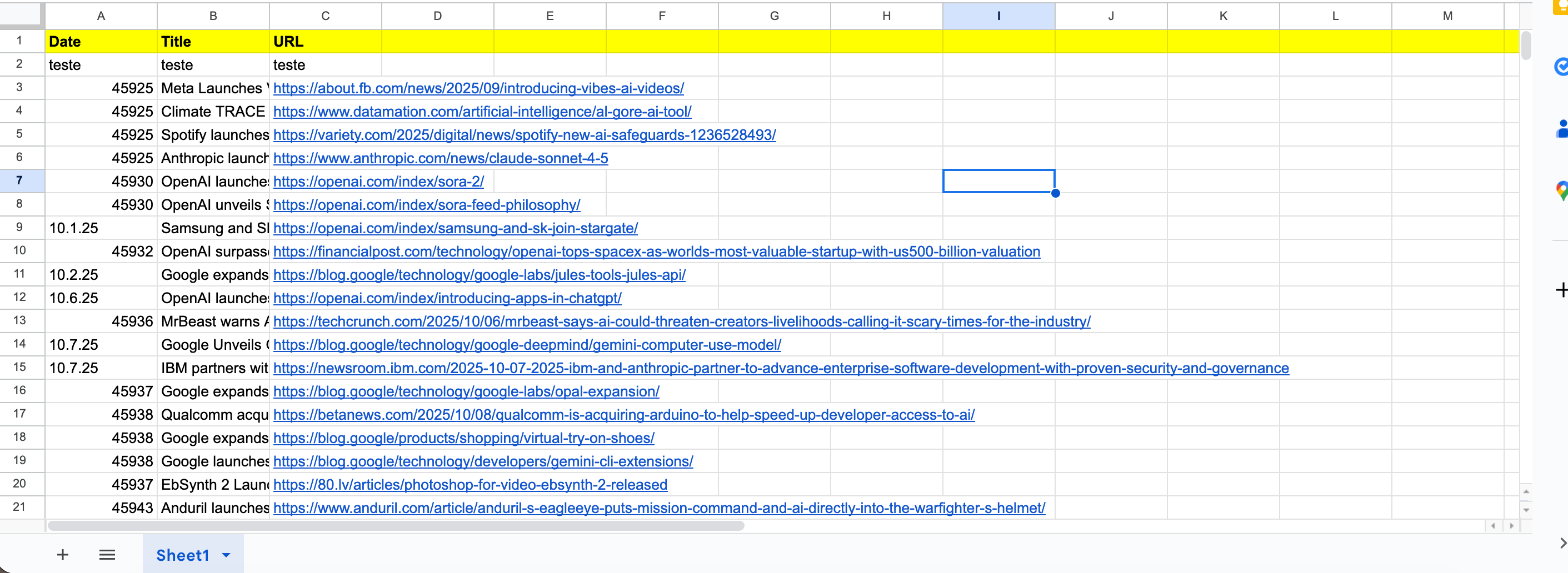
Sheet A: Blocklist
Create columns:
-
date
-
Title
-
URL
This sheet is your “already covered” memory.
—
Sheet B: Content Queue
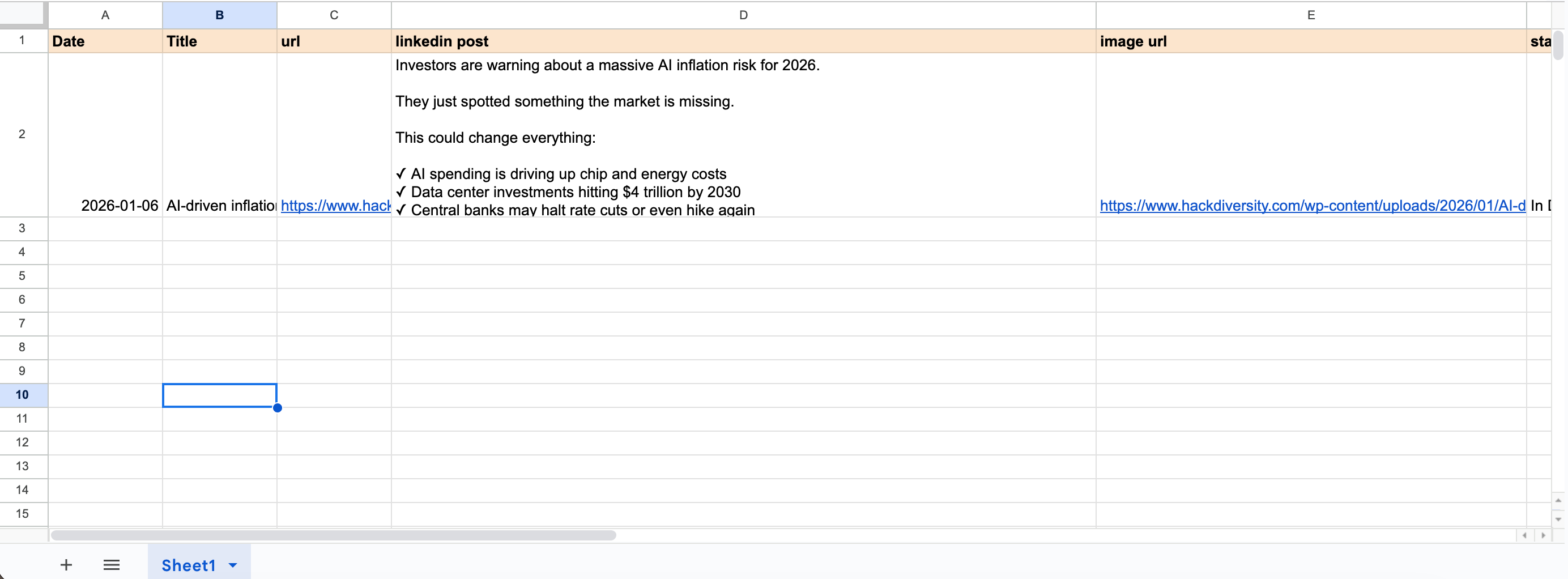
Create columns:
-
date
-
Title
-
URL
-
image_url
-
linkedin_post
-
status
2) Choose 1 default image URL
Pick one “standard” image you’re happy to reuse when the article doesn’t have a public feature image URL.
Example default image URL:
https://assets.everspringpartners.com/dims4/default/fb976e9/2147483647/strip/true/crop/686×360+171+0/resize/1200×630!/quality/90/?url=http%3A%2F%2Feverspring-brightspot.s3.us-east-1.amazonaws.com%2Fdf%2Fee%2F106592af4d508f76b29662e456db%2Fadvanced-ai.jpg
🏗️ Build the scenario in Make (step-by-step)
Step 1) Perplexity: get the top 5 AI news
Make module: OpenRouter → Create a Chat Completion
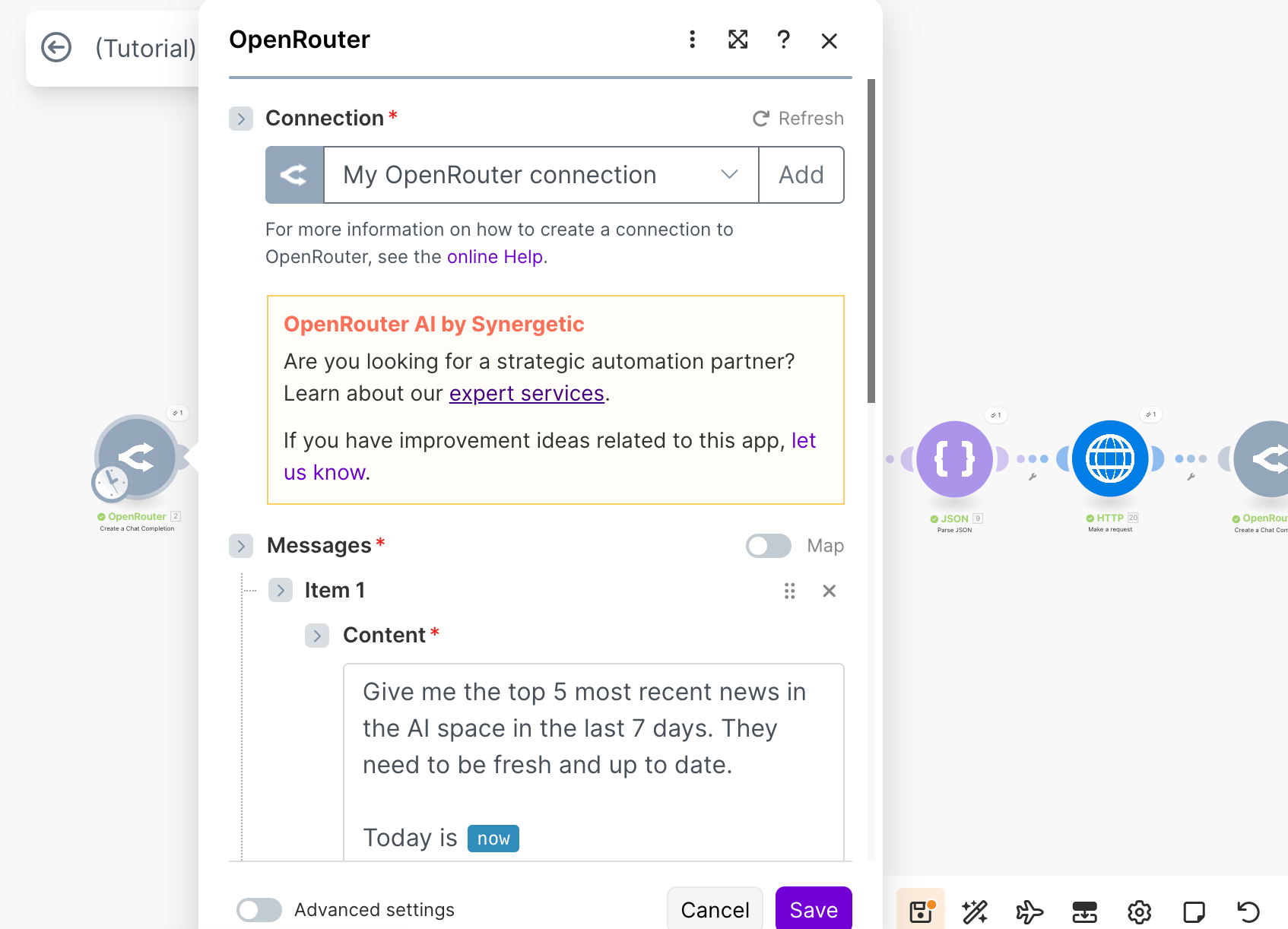
Perplexity prompt
Give me the top 5 most recent news in the AI space in the last 7 days. They need to be fresh and up to date.

Today is {{now}}

#output
The output should be in JSON format like this:

{
“date”: “INSERT DATE HERE”,
“Title”: “INSERT TITLE OF NEWS HERE”,
“URL”: “INSERT NEWS URL HERE”
}

rules:

Don’t add anything before or after the JSON code. No json or ‘’‘ before or after

In the urls please remove the utm part
Step 2) Parse JSON
Make module: JSON → Parse JSON
Paste the Perplexity output once so Make detects the fields.
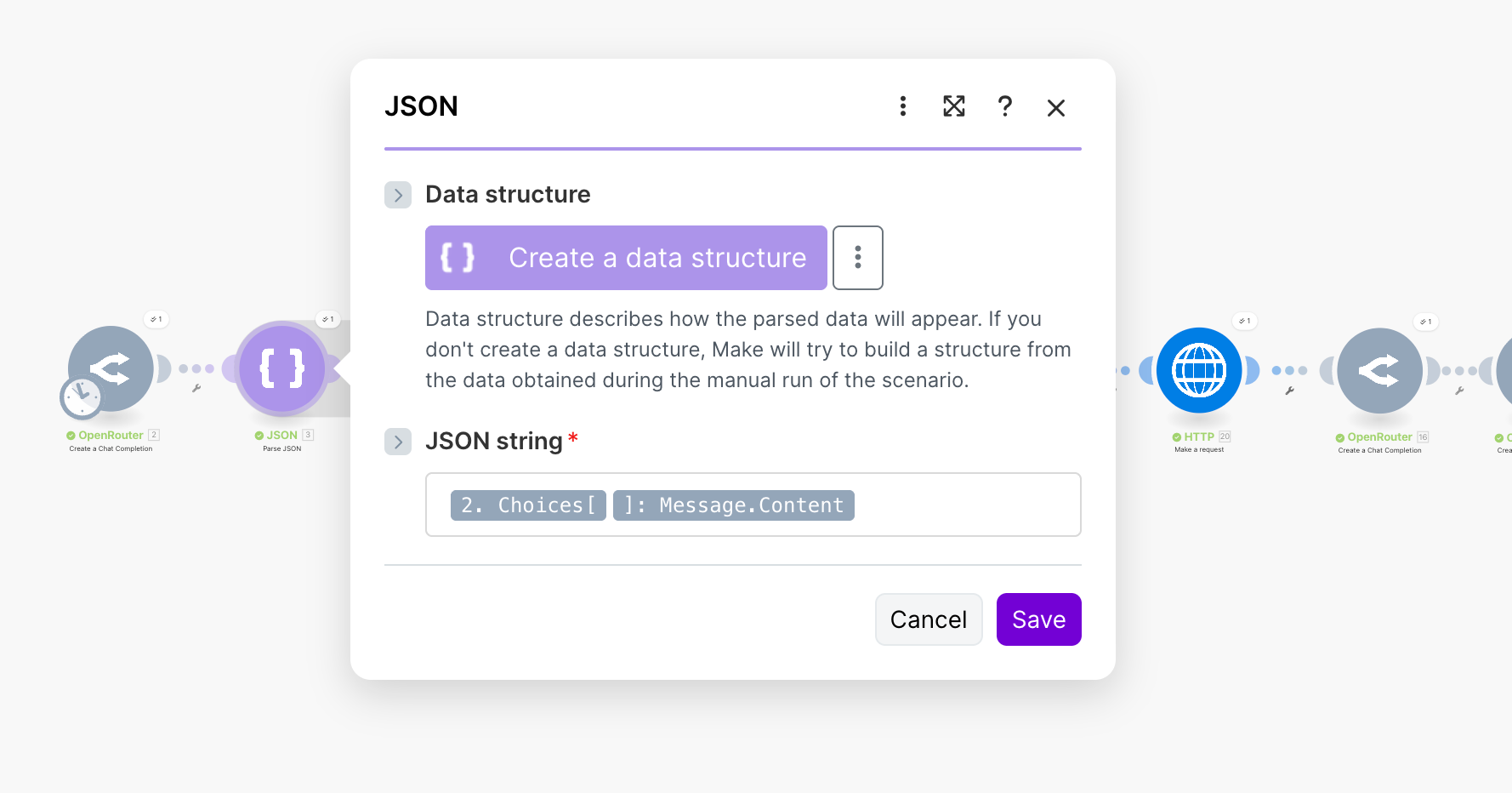
Now Make can “see” your values like:
-
date
-
Title
-
URL
Step 3) Check your blocklist (so you don’t repeat news)
Make module: Google Sheets → Search Rows
Search in Blocklist using the URL you got from Perplexity.
If it doesn’t exist, continue the scenario.
If it already exists, stop (or skip to the next story if you want to make it more advanced later).
Step 4) Pick the best story (most important + viral)
Make module: Text aggregator → Combines all titles in 1 variable so ChatGPT can read it.
Make module: OpenRouter → Create a Chat Completion
Prompt
Out of the news below decide the one you think is the most important and it can go viral.

Just give me the title, date and url of the news you have chosen in a JSON format.

#output
The output should be in JSON format like this:

{
“date”: “INSERT DATE HERE”,
“Title”: “INSERT TITLE OF NEWS HERE”,
“URL”: “INSERT NEWS URL HERE”
}

rules:

Don’t add anything before or after the JSON code. No json or ‘’‘ before or after

Data to analyse:
{{7.text}}
Step 5) Parse JSON (again → same module as above)
Make module: JSON → Parse JSON
Now you have one clean chosen story with:
-
date
-
Title
-
URL
Step 6) Retrieve the feature image URL (or use the default)
Make module: HTTPS Reques → to scrape the website url content
Make module: OpenRouter → Create a Chat Completion
Prompt
Read the website html below and try to retrieve the feature image URL of the article.

#output
Only give me the public url of the image and nothing else

#rules

If you cannot find a feature image url in the code below, use this default image url: https://assets.everspringpartners.com/dims4/default/fb976e9/2147483647/strip/true/crop/686x360+171+0/resize/1200x630!/quality/90/?url=http%3A%2F%2Feverspring-brightspot.s3.us-east-1.amazonaws.com%2Fdf%2Fee%2F106592af4d508f76b29662e456db%2Fadvanced-ai.jpg

Website HTML to analyse:
{{20.data}}
✅ Output will be just the image URL.
Step 7) Generate the LinkedIn post
Make module: OpenRouter → Create a Chat Completion
LinkedIn prompt
Act as social media manager.

#task
Your task is to create a LinkedIn post based on the news below.

#rules
Always use we in the post to refer to us - the authors of the post

Choose randomly one of the structure examples below to create the new post with the same format and structure

Always end all the posts with this footer:
♻️ Repost this so your network can see it
👋 Follow The AI Break Newsletter - 90k AI enthusiasts read the latest about AI

Check the full article here:
{{9.URL}}

structure examples:

Example 1:
Scientists just trained AI to predict diseases YEARS before they happen.

This isn’t science fiction anymore. Researchers created an AI model that can forecast over 1,000 medical conditions years in advance.

The breakthrough is massive:
↳ Built on ChatGPT-like technology
↳ Predicts medical diagnoses years ahead
↳ Over 1,000 different diseases covered
↳ Could revolutionize preventive healthcare

Translation: Your AI assistant might soon tell you about health risks before any symptoms appear.

This could change everything about how we approach medicine. Instead of treating diseases after they develop, we could prevent them entirely.

At The AI Break, we’ve been covering AI breakthroughs for our 90k subscribers. This feels like one of those moments that separates “before” and “after” in medical history.

Early detection, personalized prevention, targeted treatments...

All powered by AI that sees patterns humans miss.

What would you do if AI could predict your health risks 5 years from now?

--
Example 2
Microsoft is making a bold move in AI.

They just launched MAI-Voice-1 and MAI-1-Preview models.

Why this matters:

✓ MAI-Voice-1 brings advanced speech capabilities
✓ MAI-1-Preview directly challenges OpenAI’s dominance
✓ Microsoft reduces dependence on external providers
✓ Enterprise customers get more integrated solutions

This changes the game for:
↳ More AI voice options in Microsoft products.
↳ Better integration across Office 365.
↳ Competitive pricing as options increase.
↳ New features in Teams and Copilot.
↳ Enterprise-focused AI solutions.

--
Example 3
Microsoft is making a bold move in AI.

They just launched MAI-Voice-1 and MAI-1-Preview models.

Why this matters:

✓ MAI-Voice-1 brings advanced speech capabilities
✓ MAI-1-Preview directly challenges OpenAI’s dominance
✓ Microsoft reduces dependence on external providers
✓ Microsoft reduces dependence on external providers
✓ Enterprise customers get more integrated solutions

This changes the game for:
↳ More AI voice options in Microsoft products.
↳ Better integration across Office 365.
↳ Competitive pricing as options increase.
↳ New features in Teams and Copilot.
↳ Enterprise-focused AI solutions.

The new news to Analyse and make the LinkedIn post about is this one:
{{20.data}}
Step 8) Add the chosen story to the Blocklist
Make module: Google Sheets → Add a Row (Blocklist)
Map:
-
date → chosen date
-
Title → chosen Title
-
URL → chosen URL
Now it won’t be reused next time.
Step 9) Add the final content to your Content Queue
Make module: Google Sheets → Add a Row (Content Queue)
Map:
-
date → chosen date
-
Title → chosen Title
-
URL → chosen URL
-
image_url → output from Step 8
-
linkedin_post → output from Step 9
-
status → Draft
Now the post is stored and ready to copy/paste into LinkedIn.
Blueprint (get the automation file + spreadsheets)
If you want to speed up the process and just copy and paste the automation check our blueprints below:
“}]] Read More in The AI Break