[[{“value”:”
Hey AI Break fam 👋 Luis & Rui here. Most creators don’t “just have good ideas”.
They have a repeatable system:
-
how they hook you
-
how they pace
-
how they structure
-
how they keep you watching
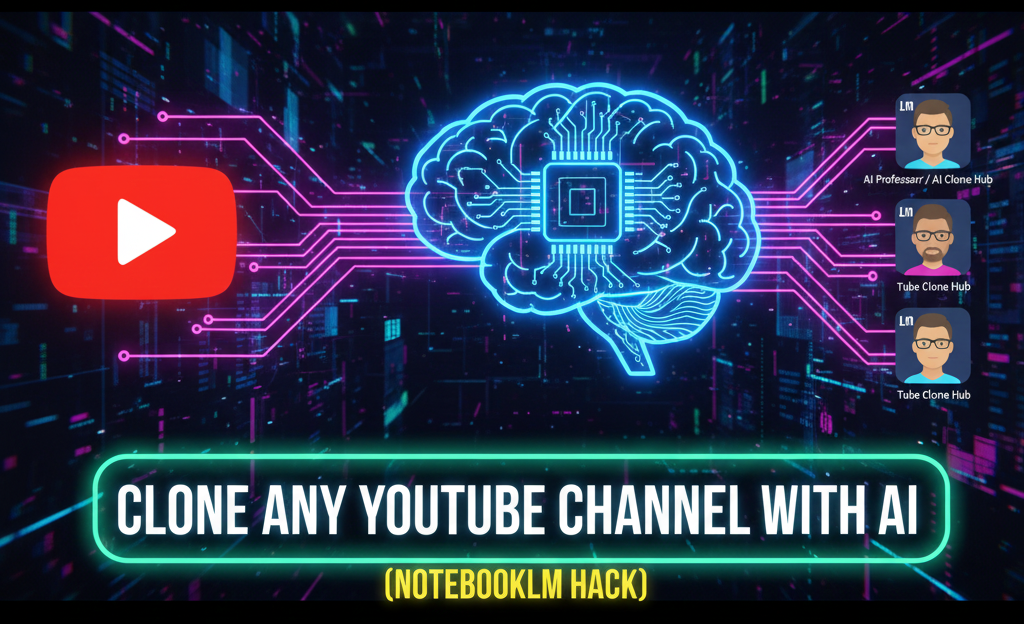
Today you’ll build a simple “chat-with-the-channel” setup using NotebookLM, so you can study any creator like a coach and pull the patterns into your own content.

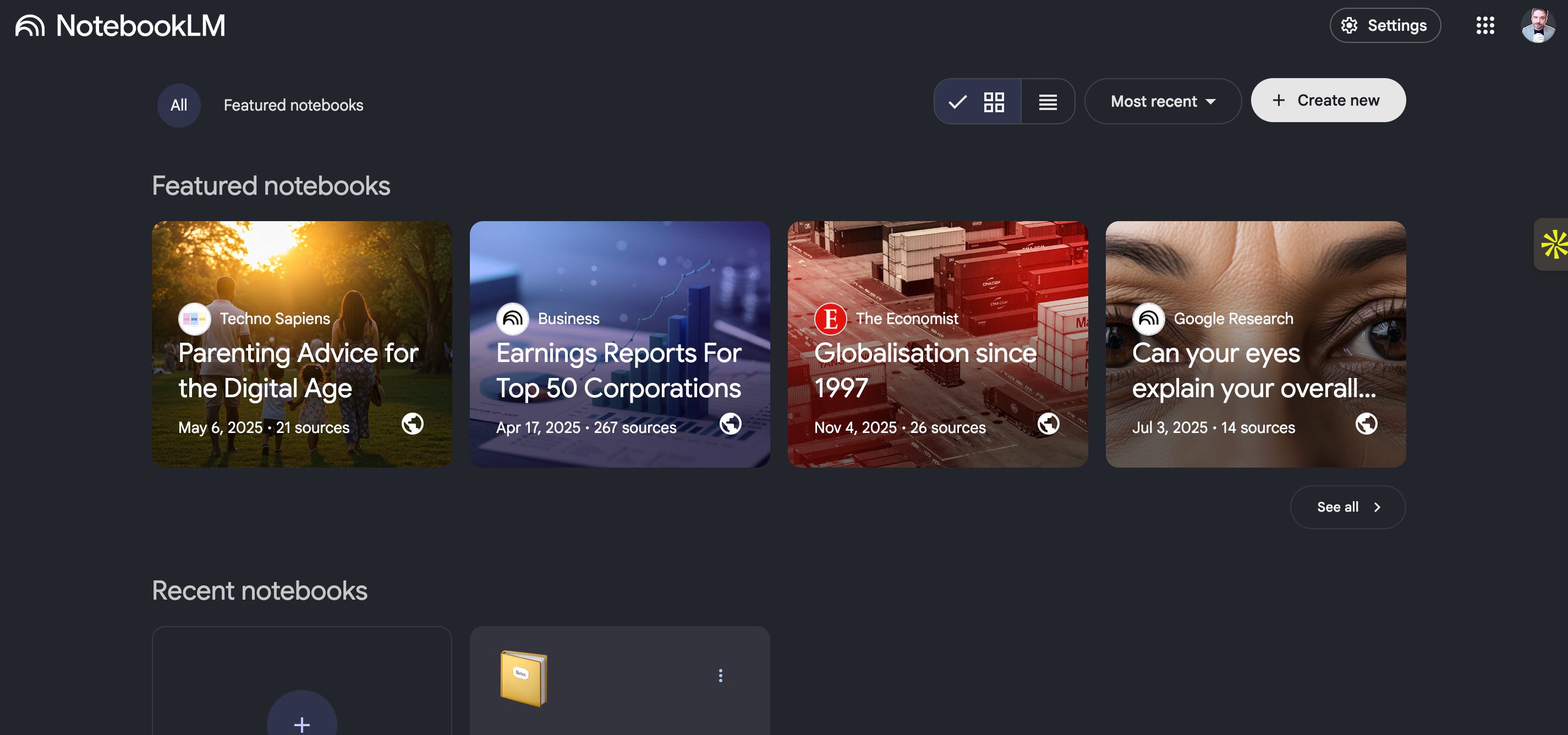
Step 1: Open NotebookLM and create a new notebook
-
Open NotebookLM by Google
-
Click Try NotebookLM
-
Sign in (if it’s your first time)
-
Click New notebook
NotebookLM lets you add sources in different ways (files, Drive, websites, YouTube).
For cloning a YouTube channel, we’re importing the channel’s video links.
Step 2: Install the 2 Chrome extensions
We’re going to use:
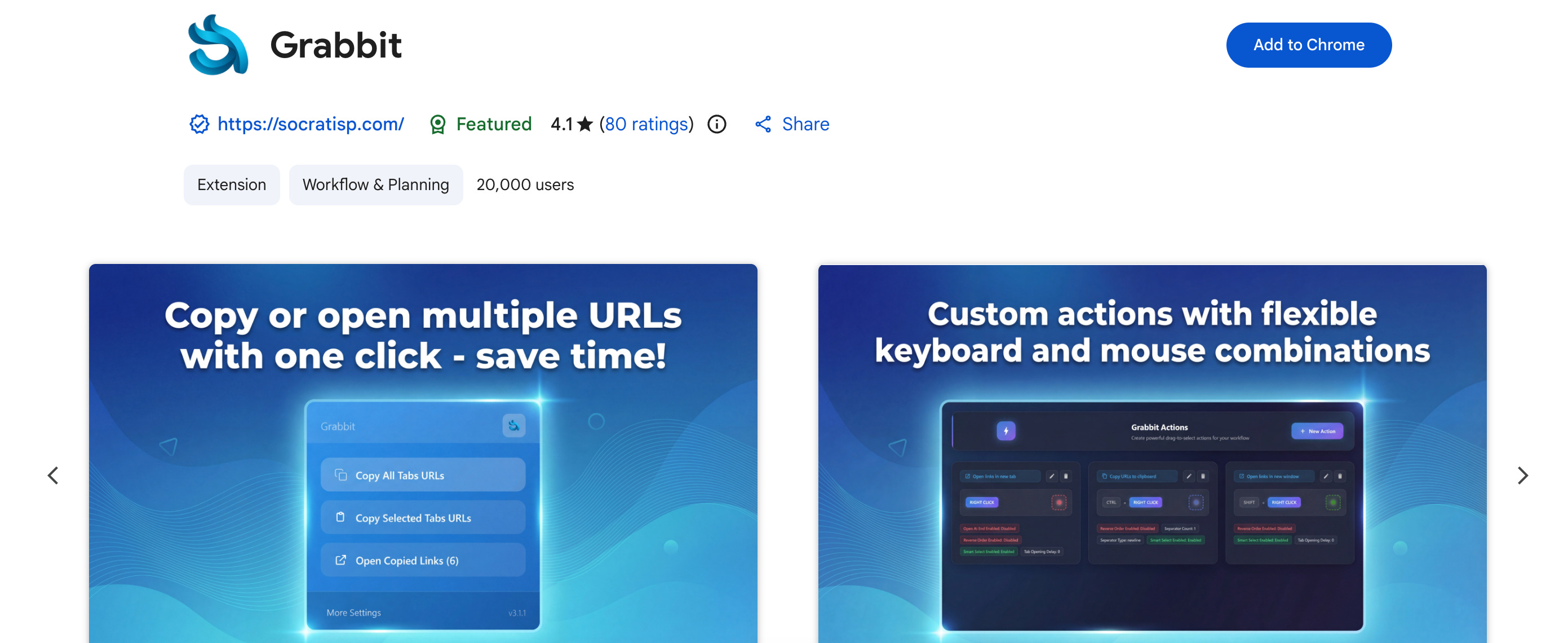
1) Grabbit
This extension copies all visible video URLs from a YouTube channel page into your clipboard.
2) NotebookLMorter (NotebookLM importer)
This extension lets you send a full list of URLs directly into NotebookLM without adding them one by one.
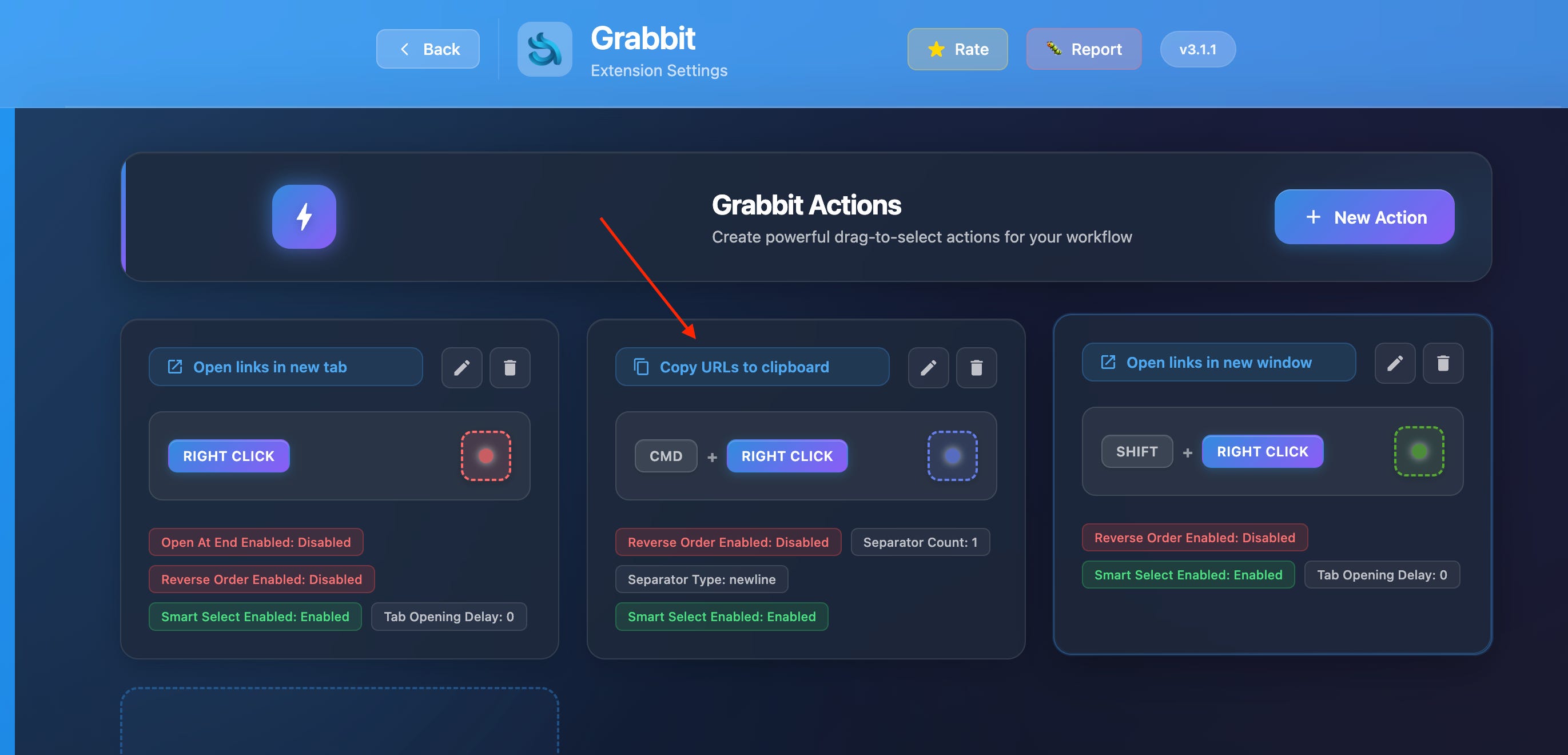
Step 3: Set up Grabbit (one-time setup)
-
Click the extension icon
-
Click More settings
-
Scroll down and click Add new action
-
Configure it like this:
-
Select a mouse button of your choice
-
Assign a shortcut key (example: Control + Shift)
-
In Action Type, choose Copy URLs to clipboard
-
Click Save
You now have a shortcut that copies all visible video links on a page.
Step 4: Copy all video links from the channel
-
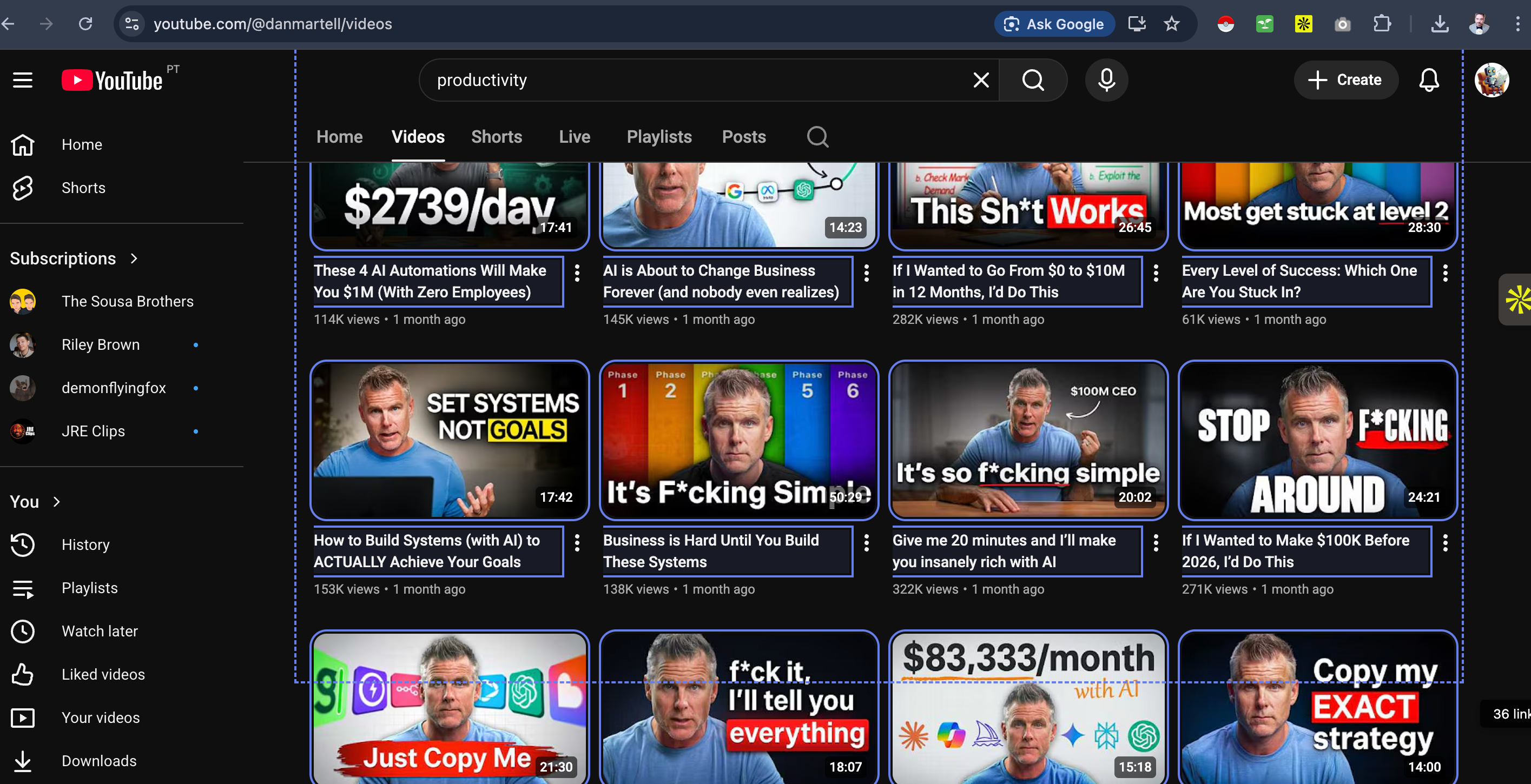
Go to the YouTube channel you want to clone
-
Scroll down to load as many videos as possible
The more videos you load, the better your clone will be. -
Press your shortcut and click the mouse button you selected
Grabbit will start detecting links and you’ll see a message like:
“25 URLs copied to clipboard” (or more)
Step 5: Import all links into NotebookLM (bulk)
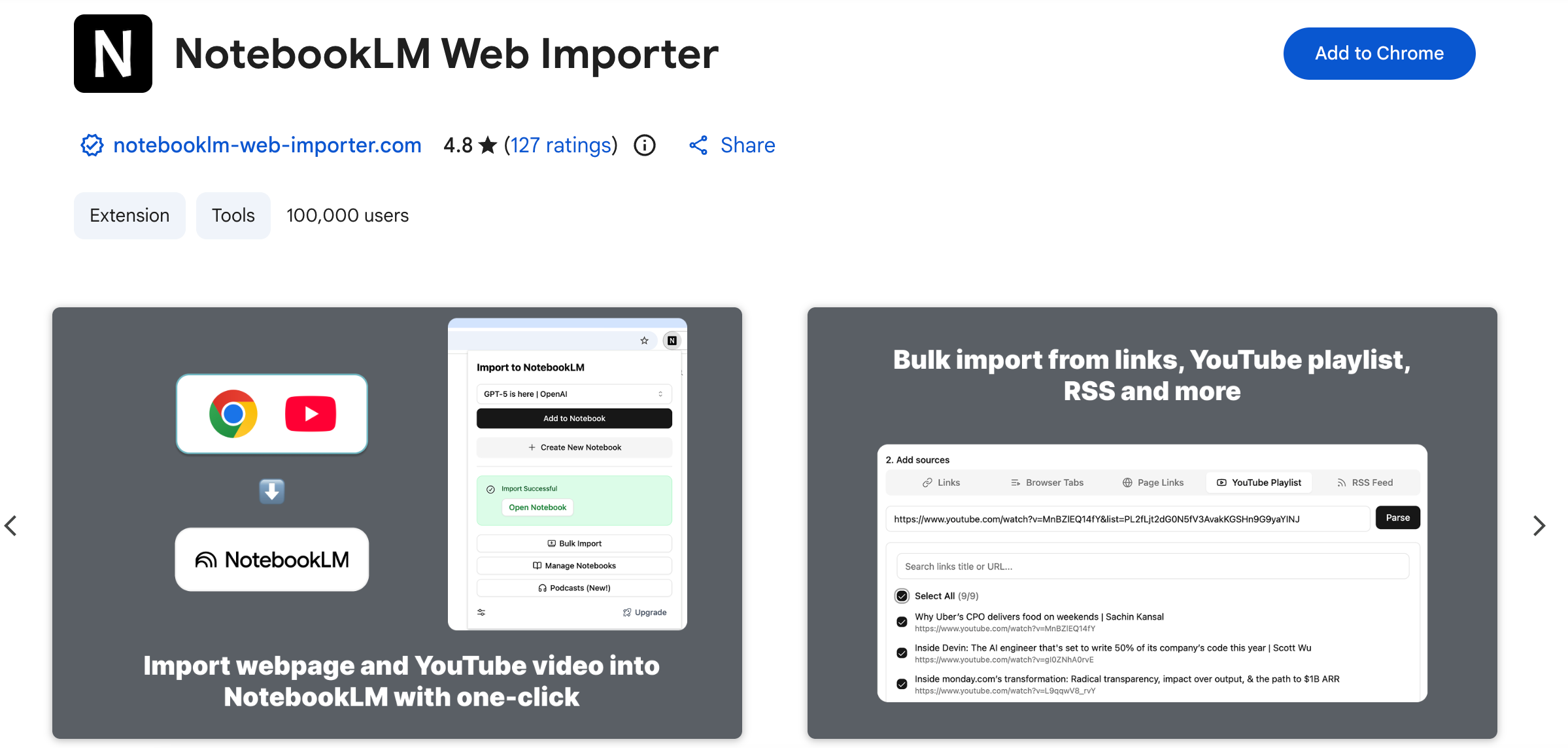
Now install the second extension: NotebookLM Web Importer.
-
Click the NotebookLM Web Importer extension
-
Select the notebook you created earlier
-
Switch to From URL list
-
Paste all the URLs you copied
-
Click Import URLs
NotebookLM will now start crawling every video. It extracts:
-
the transcript
-
key points
-
important information
You’ll see all the videos being added inside your notebook as sources.
Step 6: Chat with your “clone YouTuber”
Once all videos are imported, you can start chatting.
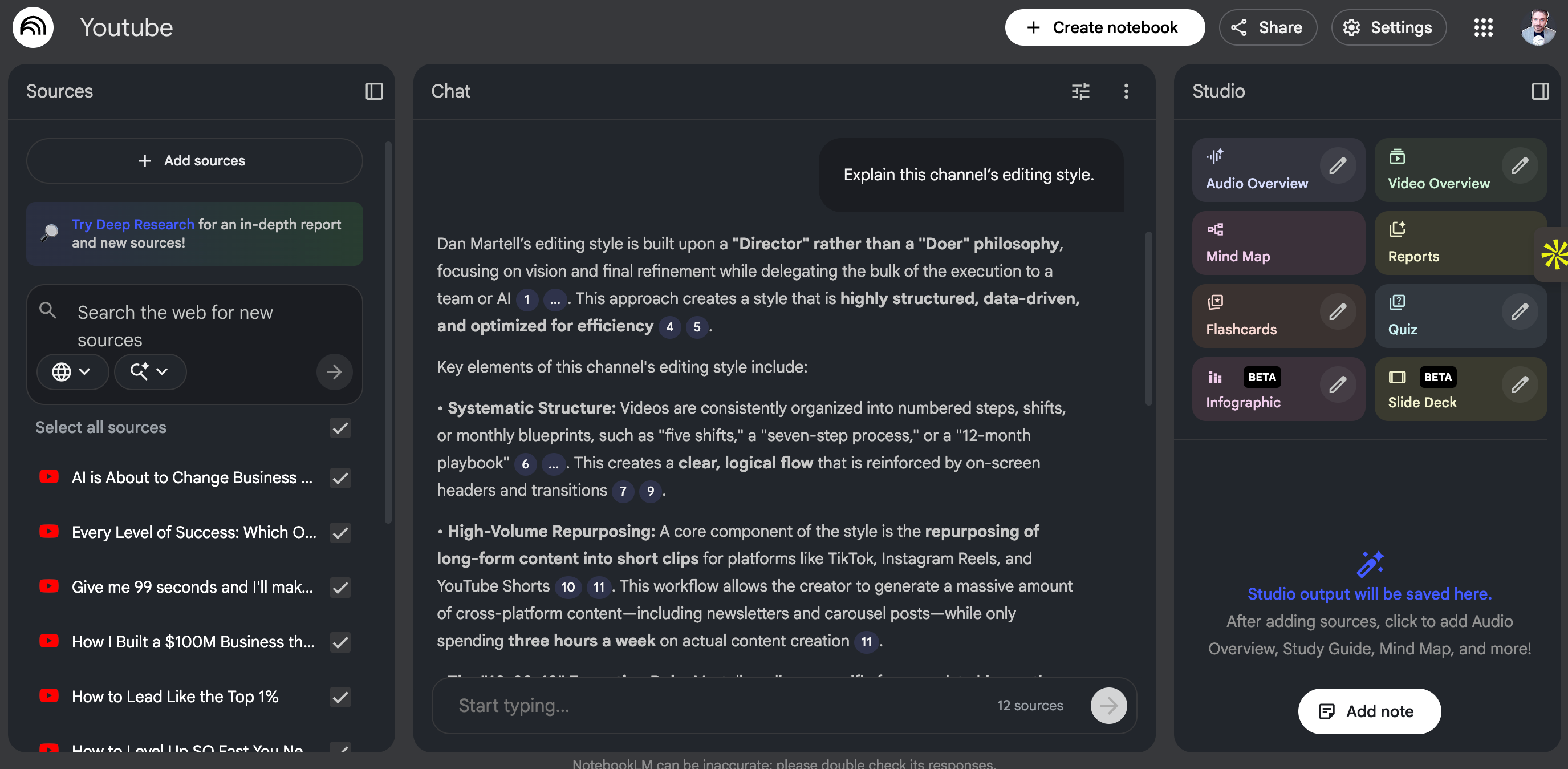
Try questions like:
-
“Explain this channel’s editing style.”
-
“Give me video ideas like this creator.”
-
“How does this YouTuber structure their content?”
-
“What do they do in the first 15 seconds to keep attention?”
-
“What topics and angles repeat the most?”
Pro tip: click Sources to see exactly which video and which part of the transcript the answer came from. This is how you verify the output.
Step 7: Use Audio Overview and Video Overview
NotebookLM has two powerful features you can generate with one click:
Audio Overview
Creates a podcast-style conversation between a male and female voice summarizing your notebook.
Perfect for learning while walking, commuting, or doing chores.
Video Overview
Creates a slideshow-style presentation with visuals and narration.
Perfect for quickly studying the creator’s frameworks and repeated patterns.
Use both for learning or inspiration.
Make the clone better
“}]] Read More in The AI Break